
How to create and manage a steps challenge
Create exciting steps challenges to encourage healthy competition among employees. Set up goals, rewards, and track progress easily through your dashboard.
Section 1
Create a challenge
Step 1
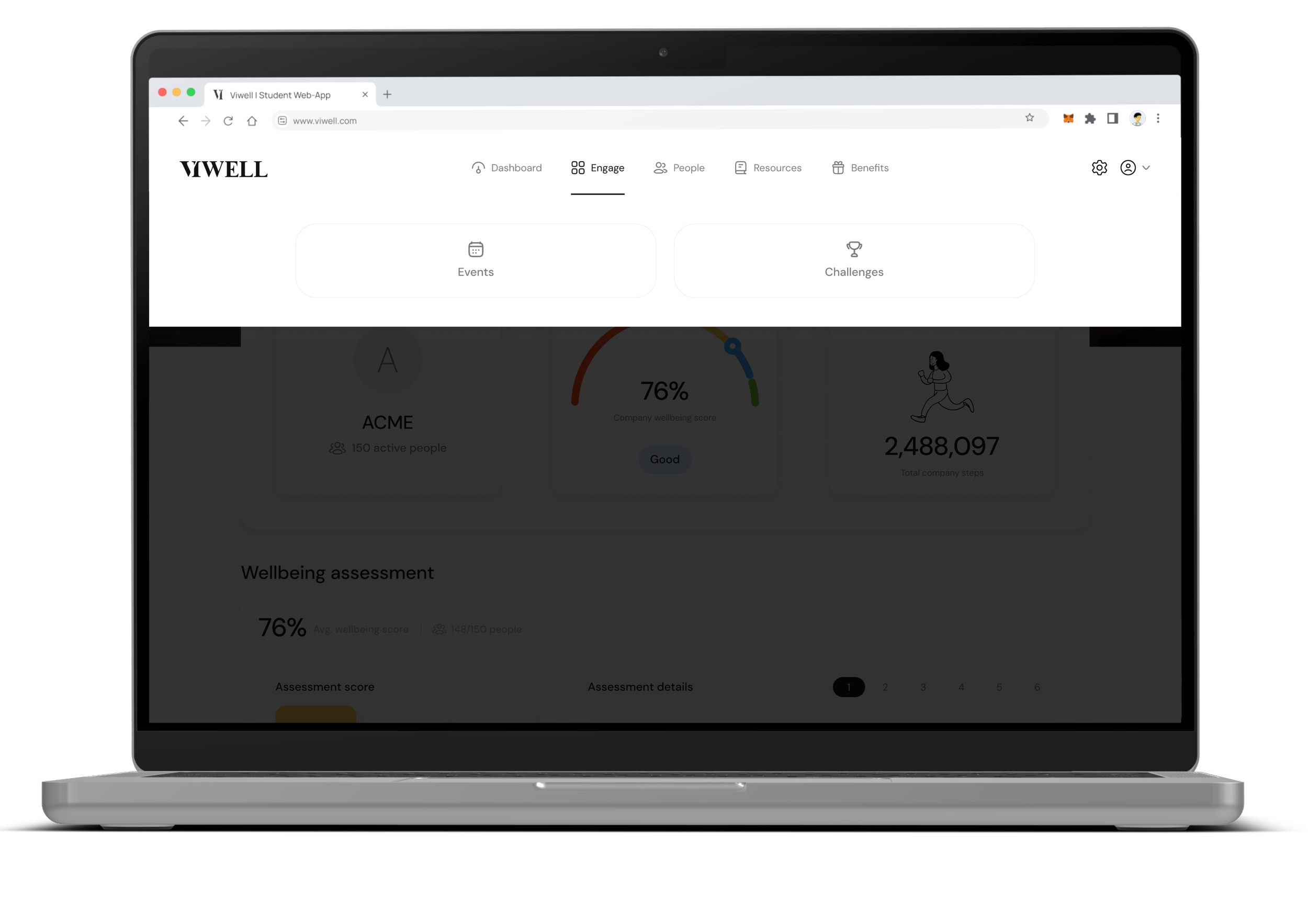
Go to Challenges
Navigate to Engagement → Challenges in the dashboard.
Step 2
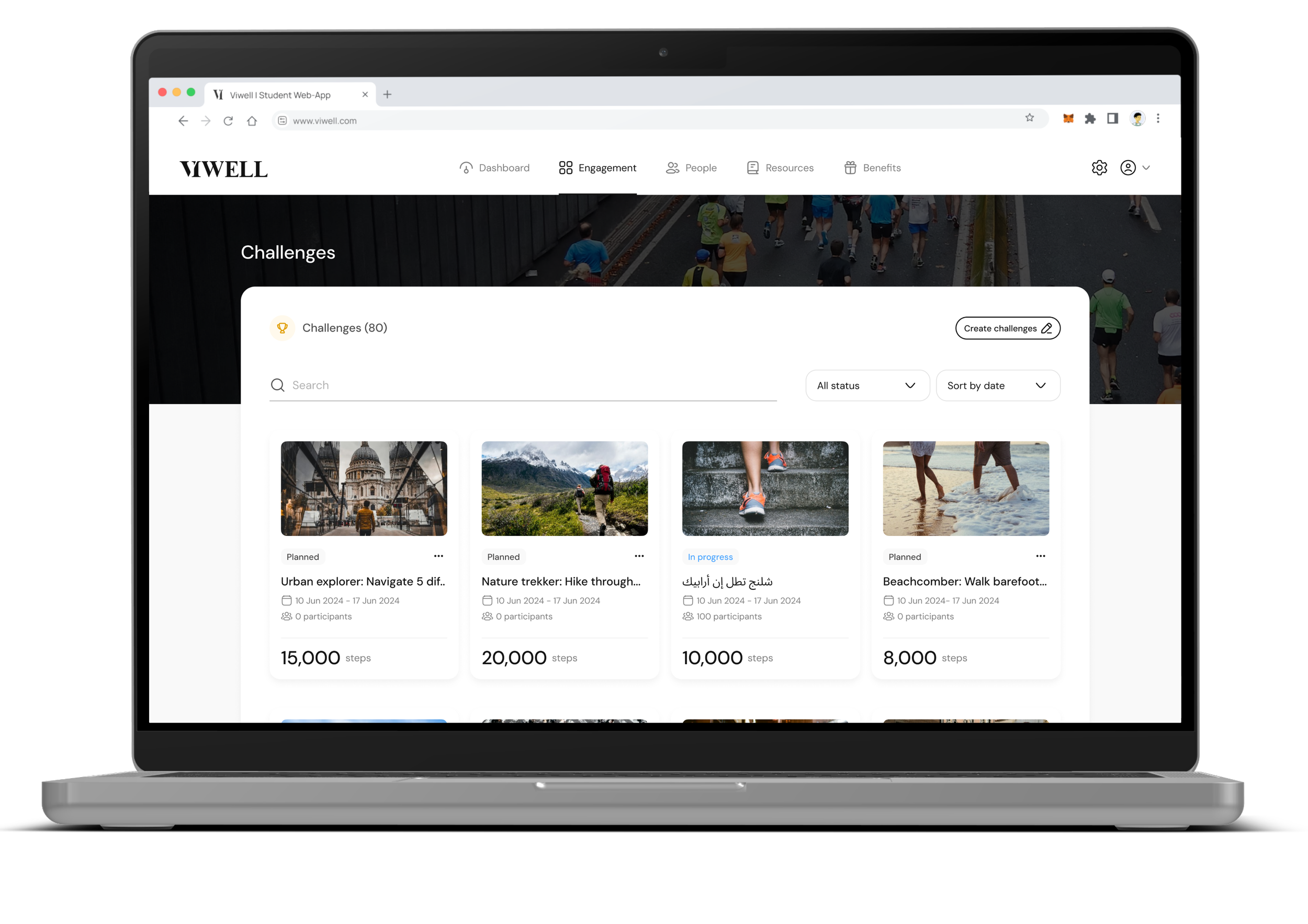
Click on “Create Challenge”
Click the Create Challenge button to start a new challenge.
Step 3
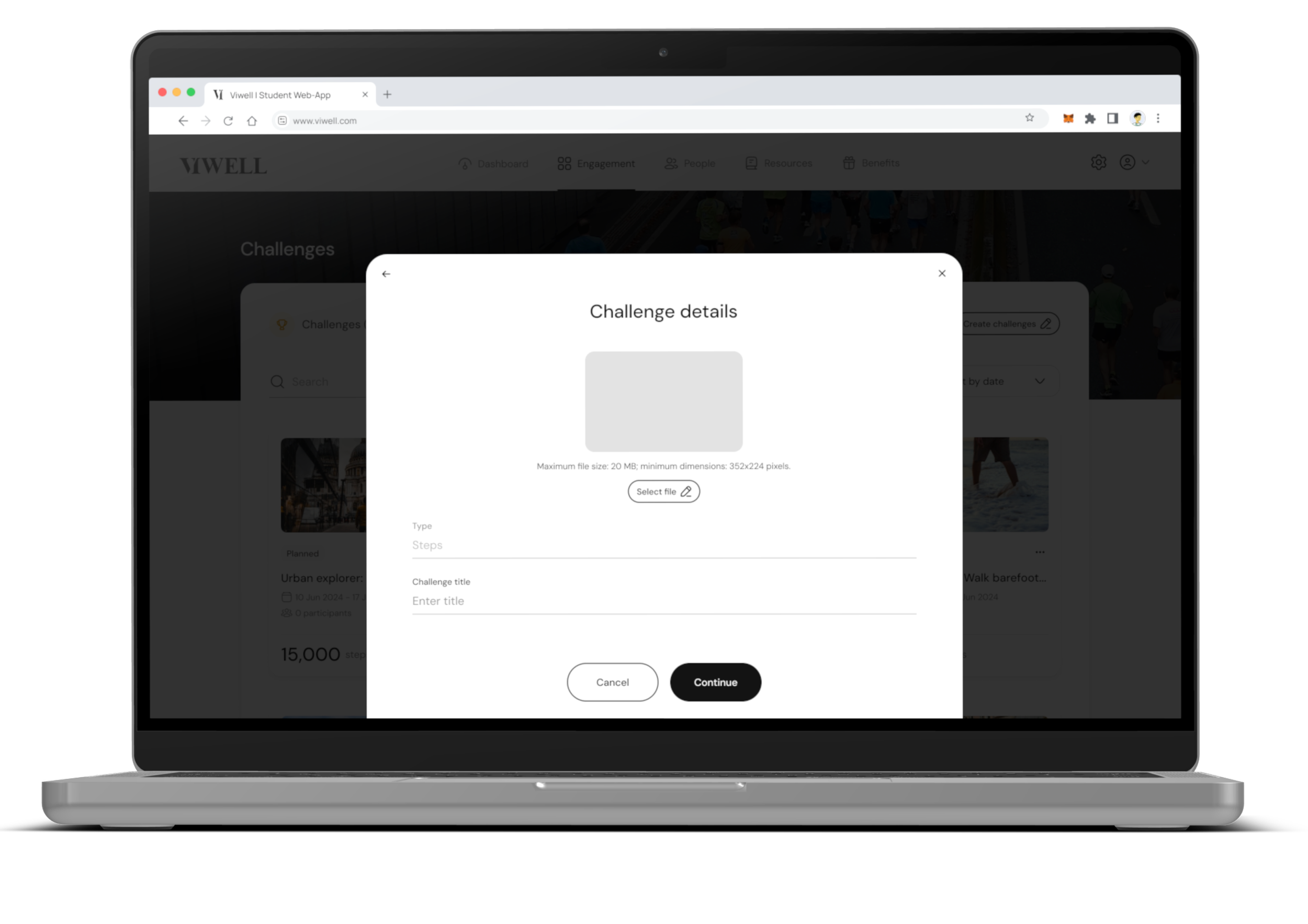
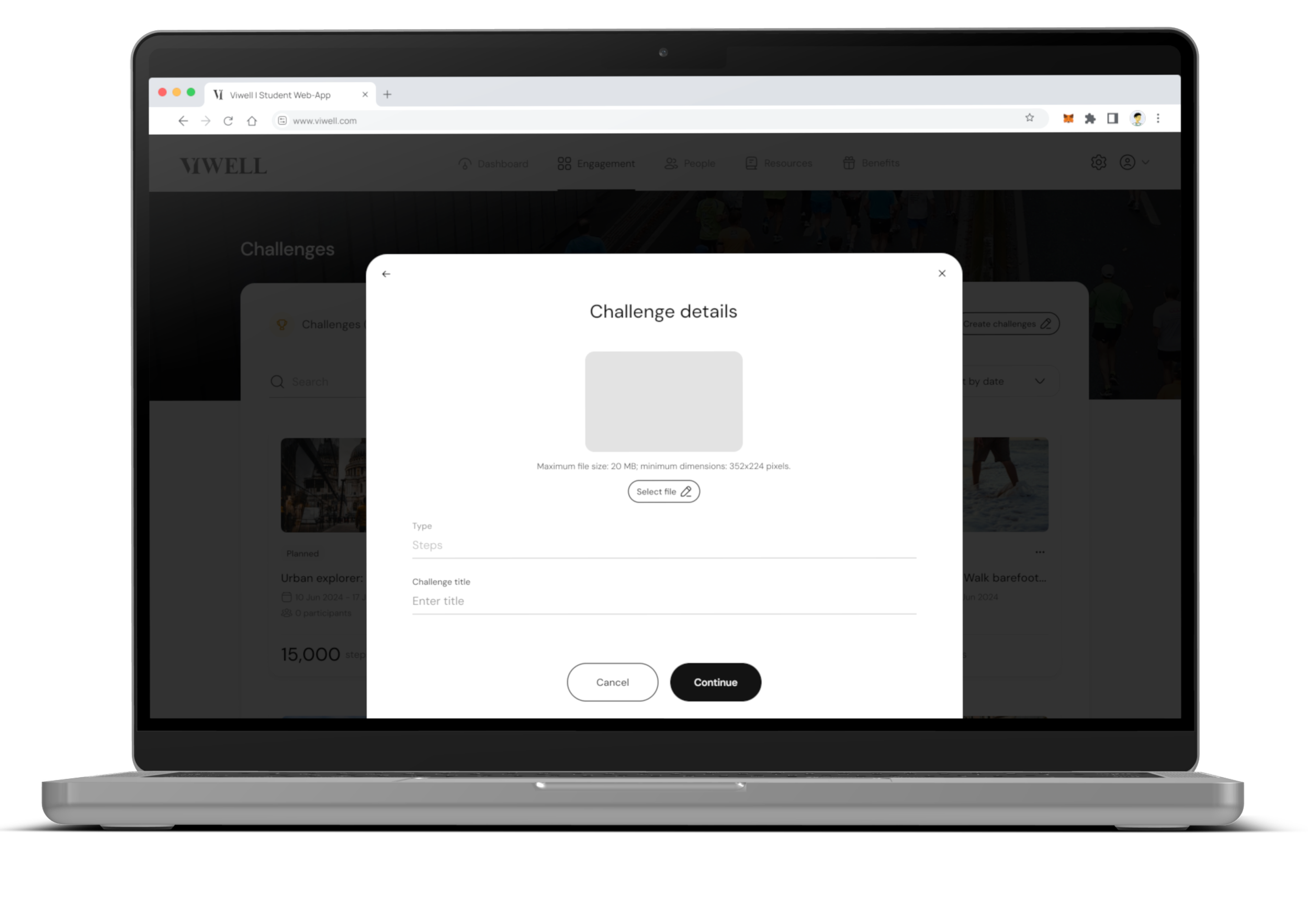
Upload Challenge Image
Upload an image for the challenge, which employees will see in their VIWELL app. The recommended maximum file size is 20MB, and the minimum dimensions are 352x224 pixels.
Step 4
Set the Challenge Title
Enter a title for the challenge, keeping it within 30 characters.
Step 5
Choose the Challenge Language
Enter a title for the challenge, keeping it within 30 characters.
Step 6
Set Challenge Start Date
Choose the start date for the challenge. The start date cannot be in the past. Employees can join before the start date, but steps will only start counting from 00:01 AM on the start date.
Step 7
Set Challenge End Date
Choose the end date for the challenge. The end date cannot be in the past or before the start date. Steps will stop counting towards the challenge at 11:59 PM on the end date.
Step 8
Set Challenge Goal
Define the number of steps required for each employee to reach the challenge goal. The maximum goal is 1,000,000 steps. Employees who complete the goal will earn coins.
Step 9
Add Rules
Provide a description of the challenge and any rules employees need to follow.
Step 10
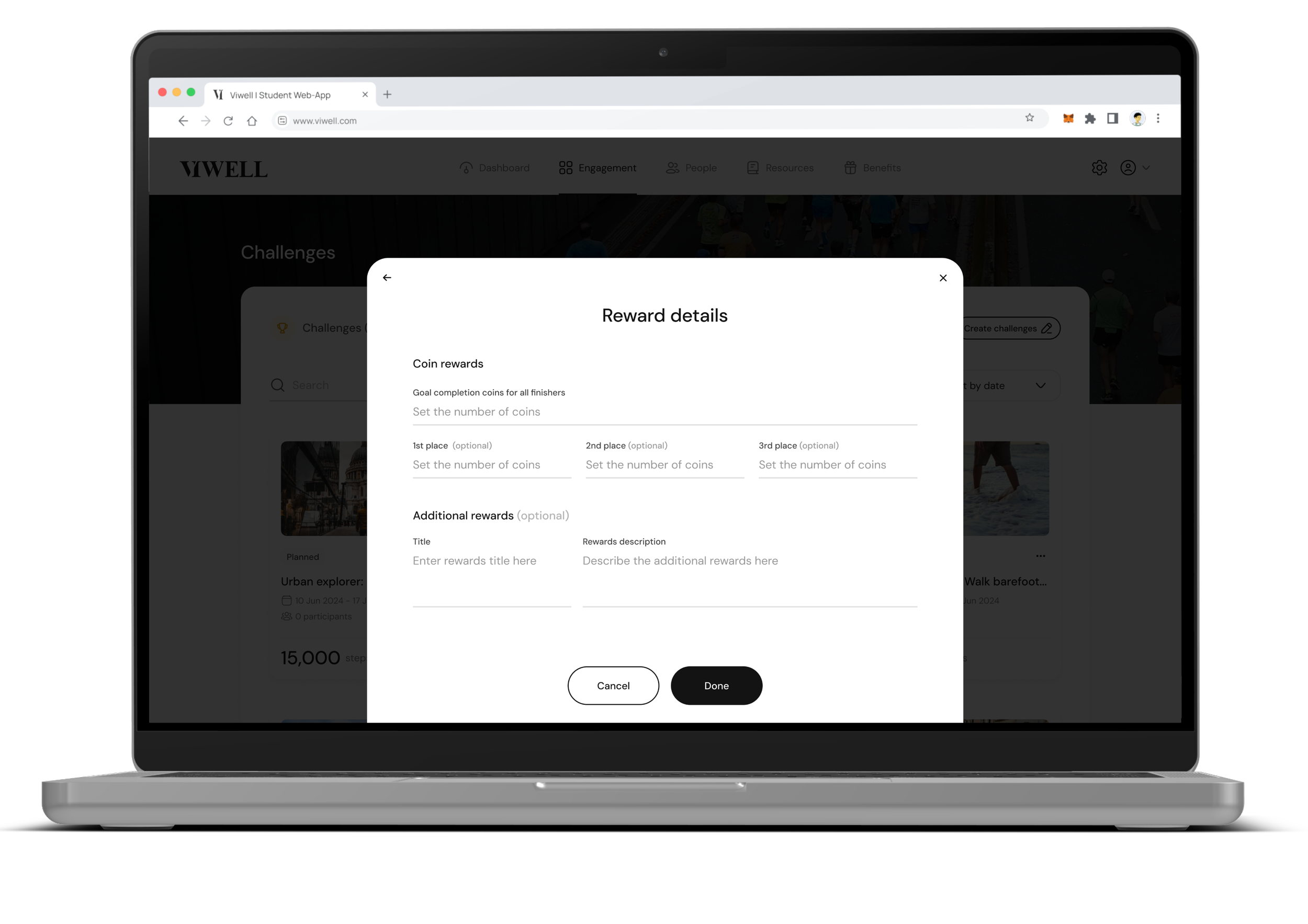
Set Coins Rewards
Goal Completion Coins: Set the number of coins employees will earn for completing the challenge goal (up to 100 coins).
Place Rewards (optional): Award coins to the top 3 employees based on their rankings in the challenge.
Additional Rewards (optional): You can provide additional rewards like gift vouchers or days off, by entering the details here as free text.
Step 11
Save the Challenge
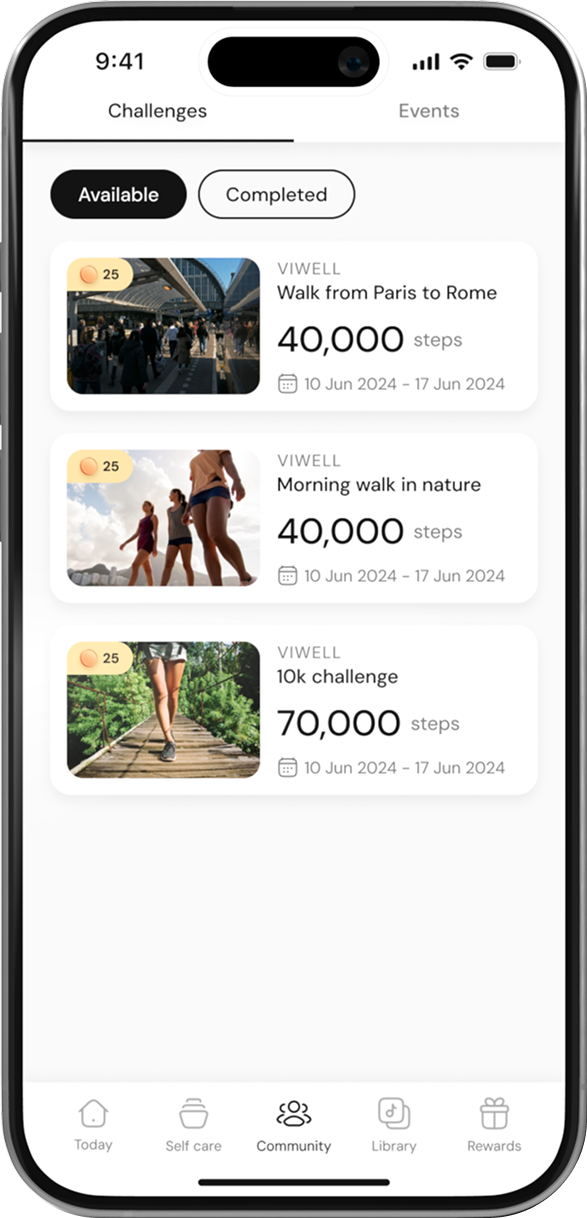
Once you’ve filled in all the details, click Save. The challenge will then appear in the Employee community section of the app, and employees can join.
Section 2
Edit challenge details
Step 1
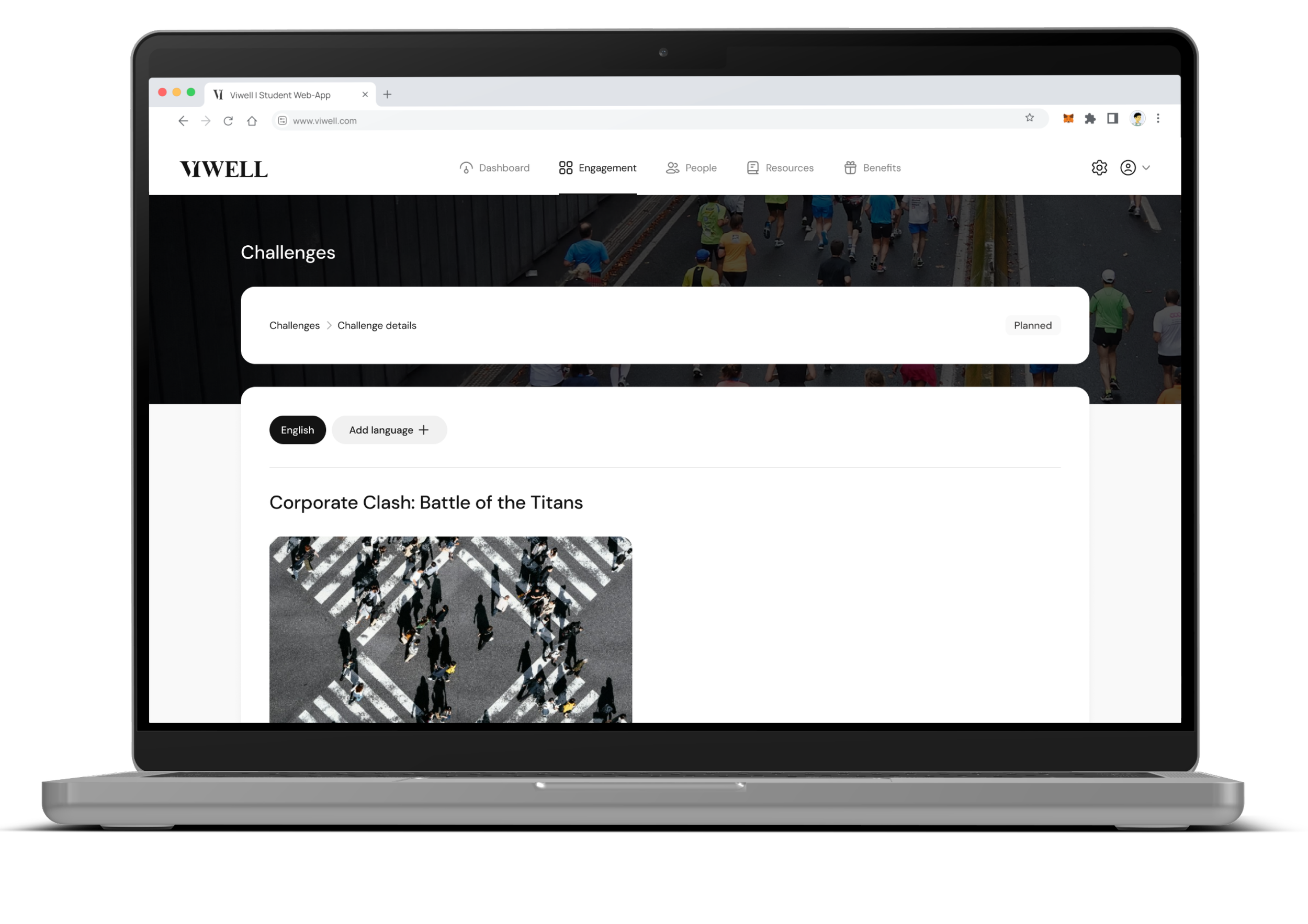
Access Challenge Details
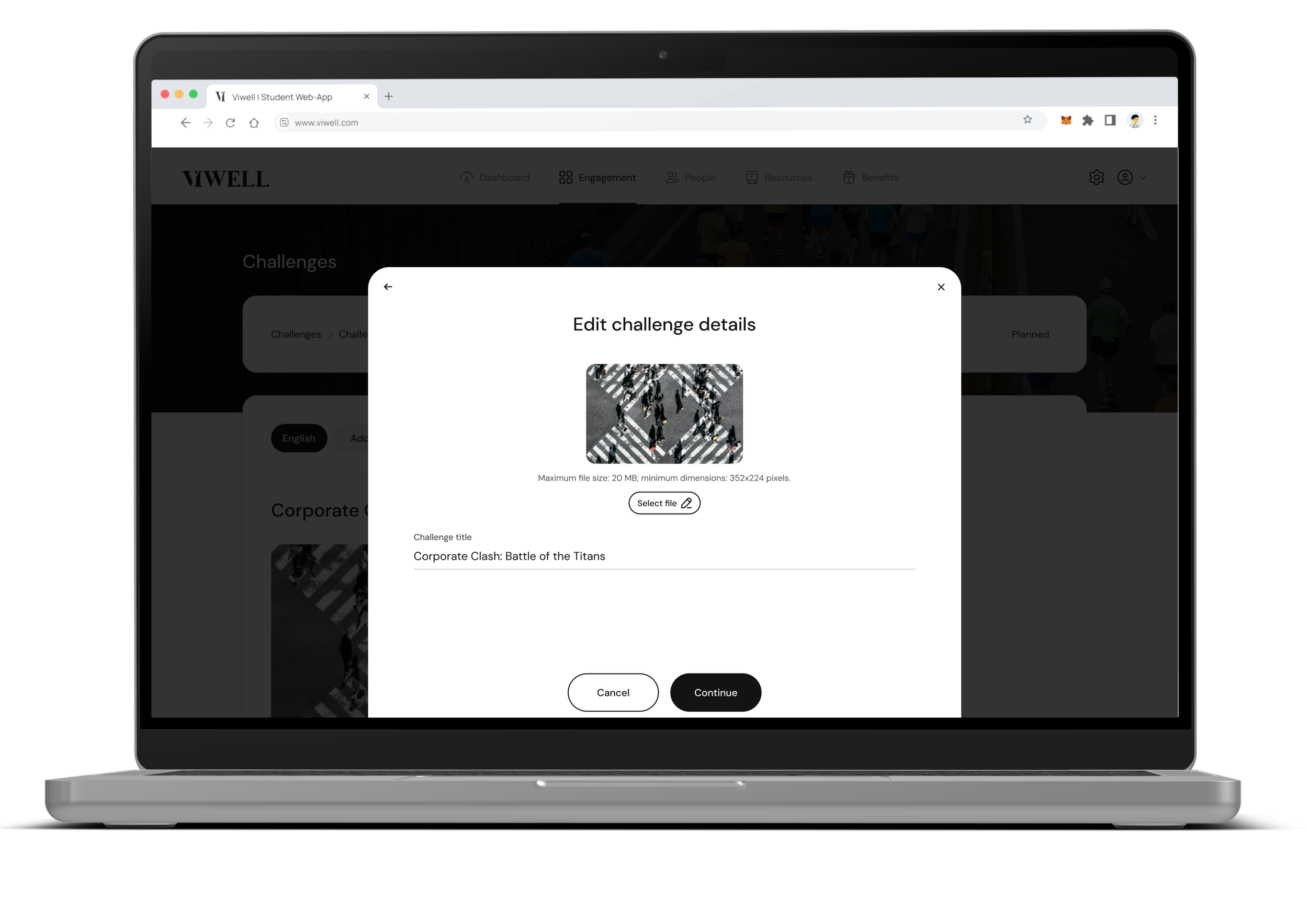
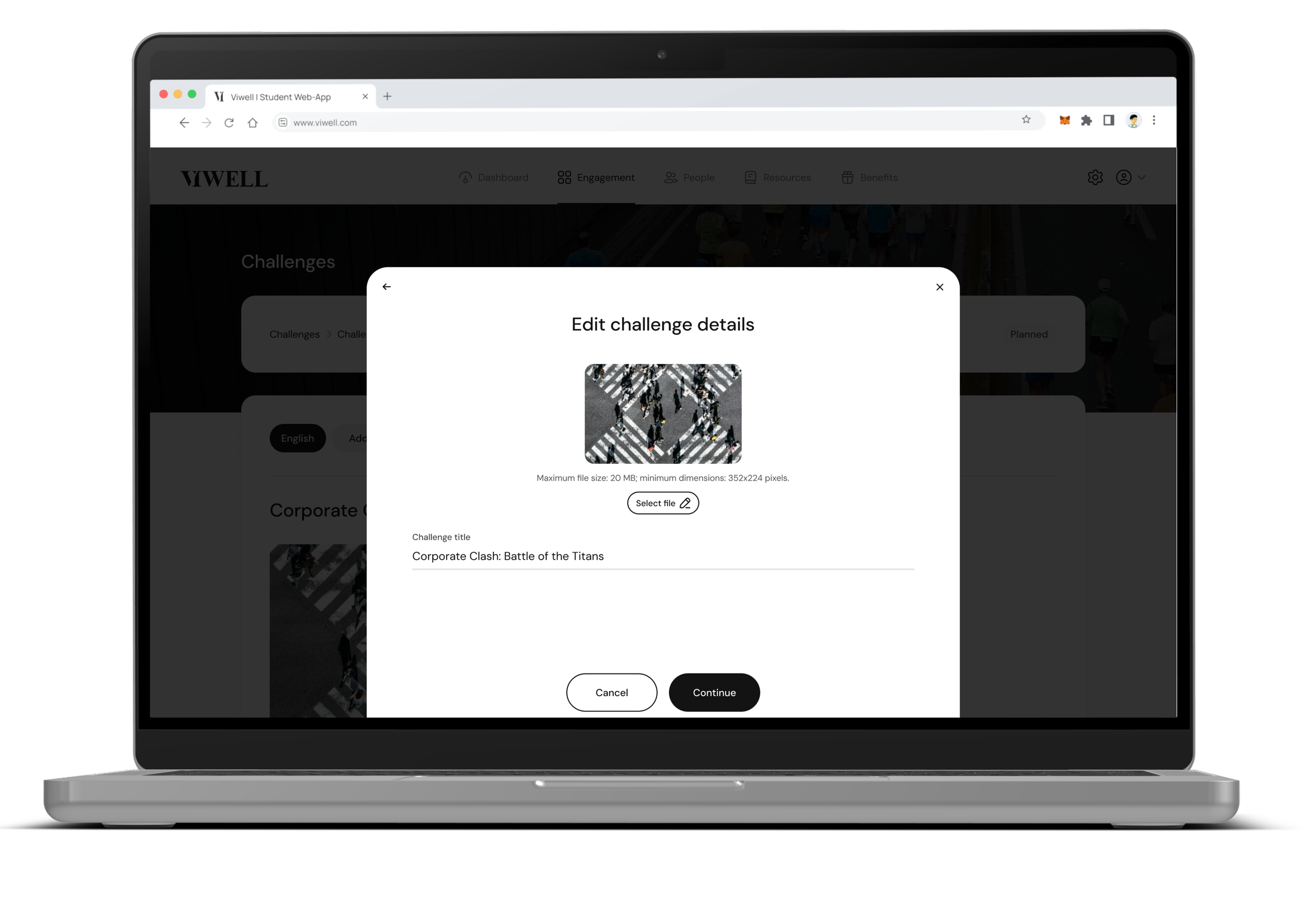
After creating the challenge, you can view its details by clicking on the challenge.
Step 2
Edit Challenge Details
You can edit any details of the challenge as long as it hasn’t started yet. Once the challenge has started, only limited fields like the title, image, and description can be edited.
Section 3
View Participants and Leaderboard
Step 1
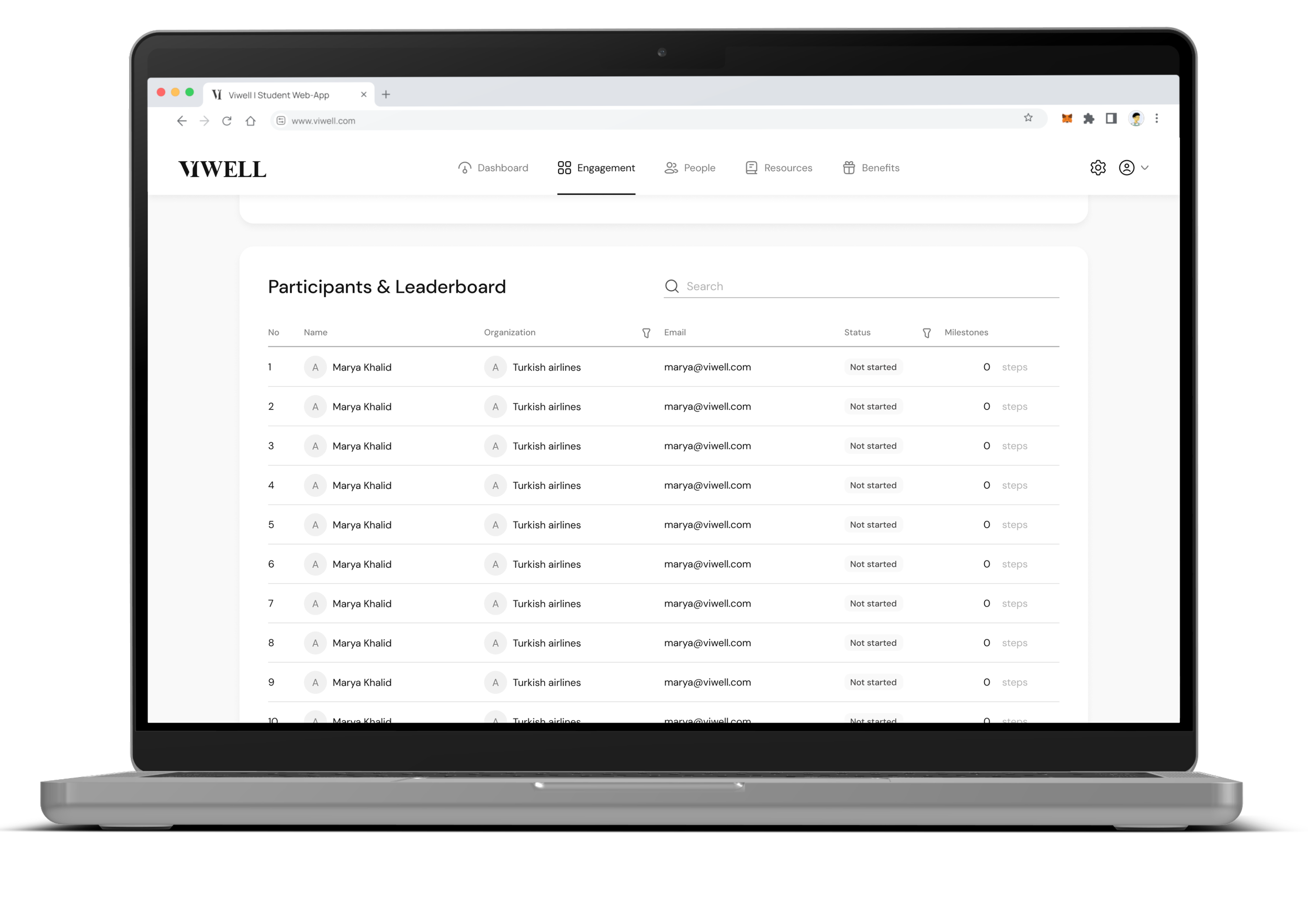
View Participants
Once employees have joined the challenge, you can view the list of participants from the challenge details page.
Step 2
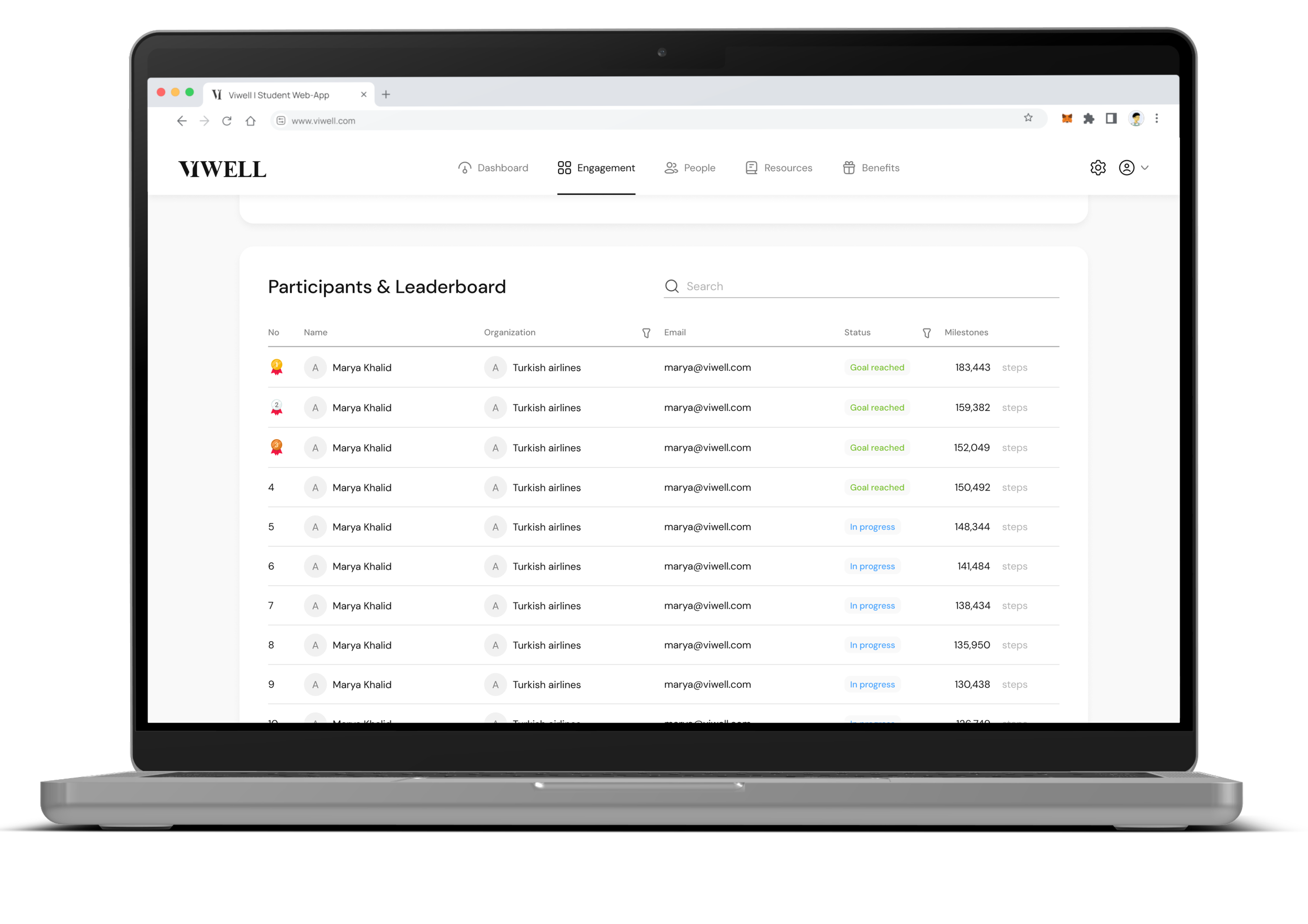
Track Progress
While the challenge is in progress, you can track employees’ step counts and see whether they’ve reached the challenge goal.

Step 3
Goal Completion Status
When an employee completes the goal, their status will show as Complete. Employees can still accumulate steps after completing the goal to rank higher on the leaderboard.
