
Wearables integrations and steps tracking
How does VIWELL track steps?
VIWELL connects to your existing Health App and retrieves steps recorded there.
Depending on your device’s operating system, you can connect either of the below - Steps to connect each are listed below :
iOS > Apple Health
Android > Health Connect
What if I use a different way to track my steps?
You can use whichever tracking method you wish to record your steps, as long as you make sure that the app used is connected and synced to either Apple Health or Health Connect. Steps to link other apps to Health apps are listed below.
Checklist before starting a steps challenge:
Ensure you see your Steps data are available in Apple Health or Health Connect and are accurate as per your preferences.
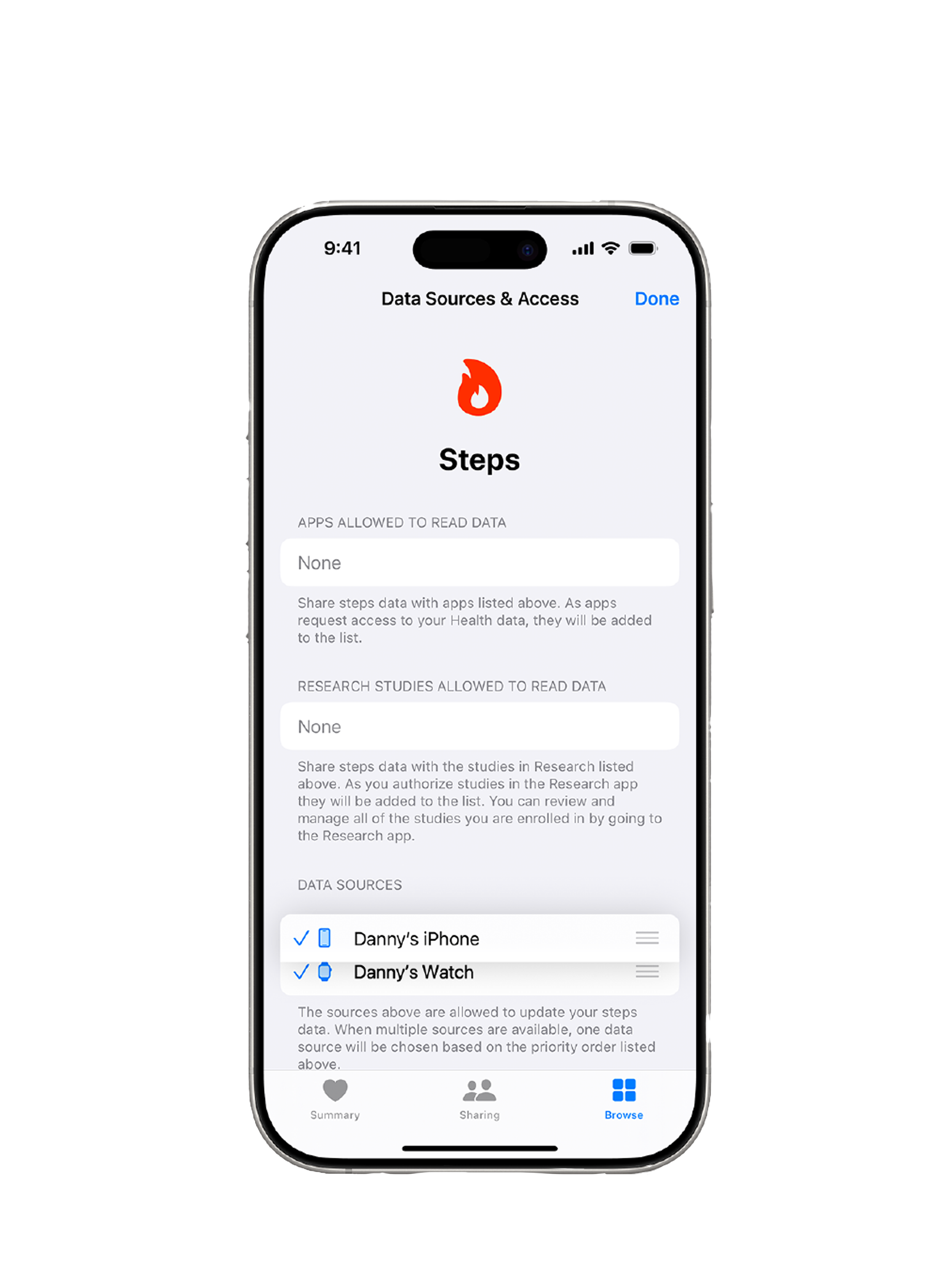
Apple:
In case this number is not similar or close to your tracking method used, it could be due to priority sources listed in your Apple Health. To update these and ensure you are recoding from your priority devices, go to:
Apple Health > Steps > Data Sources and Access > Click on Edit and scroll to Data Sources:
See the list of priority data sources set by Health app and update the priority as per your preferred tracking source.
Note: VIWELL data will only match data from your Apple Health app, and not any other app or source.
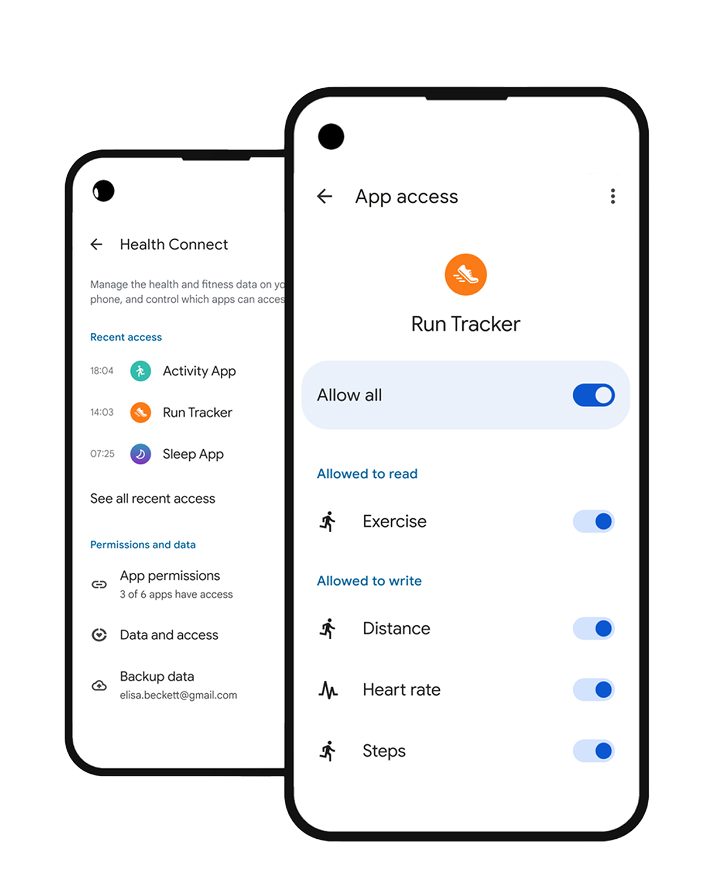
Android:
Ensure you have Health Connect installed
On new Android devices, Health Connect comes pre-installed, so launch Health Connect go to: Settings > Apps > Health Connect
On older Android devices, go to your Store and Install Health Connect.
Ensure you have steps recorded in Health connect and in line with your preferred app.
On your device, open Health Connect
Under “Permissions and data,” tap Data and access.
Under “Browse data,” tap on Activity
Tap on Steps
Under “Manage Data,” tap See all entries
To update your preferred source:
On your device, open Health Connect
Under 'Permissions and data', tap Manage data Data sources and priority.
To reorder app sources priority, under 'App sources', next to the app name, touch and hold, then drag handle .
Note: VIWELL data will only match data from your Health Connect app, and not any other app or source.
Syncing VIWELL with Health Connect
Sync data between Health Connect and VIWELL: With Health Connect, you can manage your fitness and health app connections and data with a single app.
Step 1
Get Health Connect on your phone
Health Connect comes preinstalled on devices running Android OS 14 and above. If your device does not have Health Connect, download Health Connect from the Play Store.
Step 2
Access the Health Connect app
You can access the Health Connect app through the following:
On your device, go to Settings > Apps > Health Connect and tap Open.
In your quick settings, if you’ve added Health Connect to your quick settings. Learn more about quick settings.
In your Privacy settings, if Health Connect is preloaded on your device.
Step 3
Connect your Apps
On your device, open the Health Connect app.
Tap App permissions.
Turn on apps that you want to sync with Health Connect.
Select data permissions that you want to share.
Tap Allow.
Tip: To begin to sync apps, some apps may require you to begin in the connected app itself Learn how to troubleshoot Health Connect.
What data is shared
When you connect and grant access to an app, it has the permission to read and write data to Health Connect. Once access is granted, the connected app can access data from the last 30 days and any new data written after that.
A connected app’s service will continue to retain a copy of the data it shared with Health Connect. Your data is stored locally, on your device, and you're in control of which apps have access to your data on Health Connect and what kind of data is shared with your connected apps.
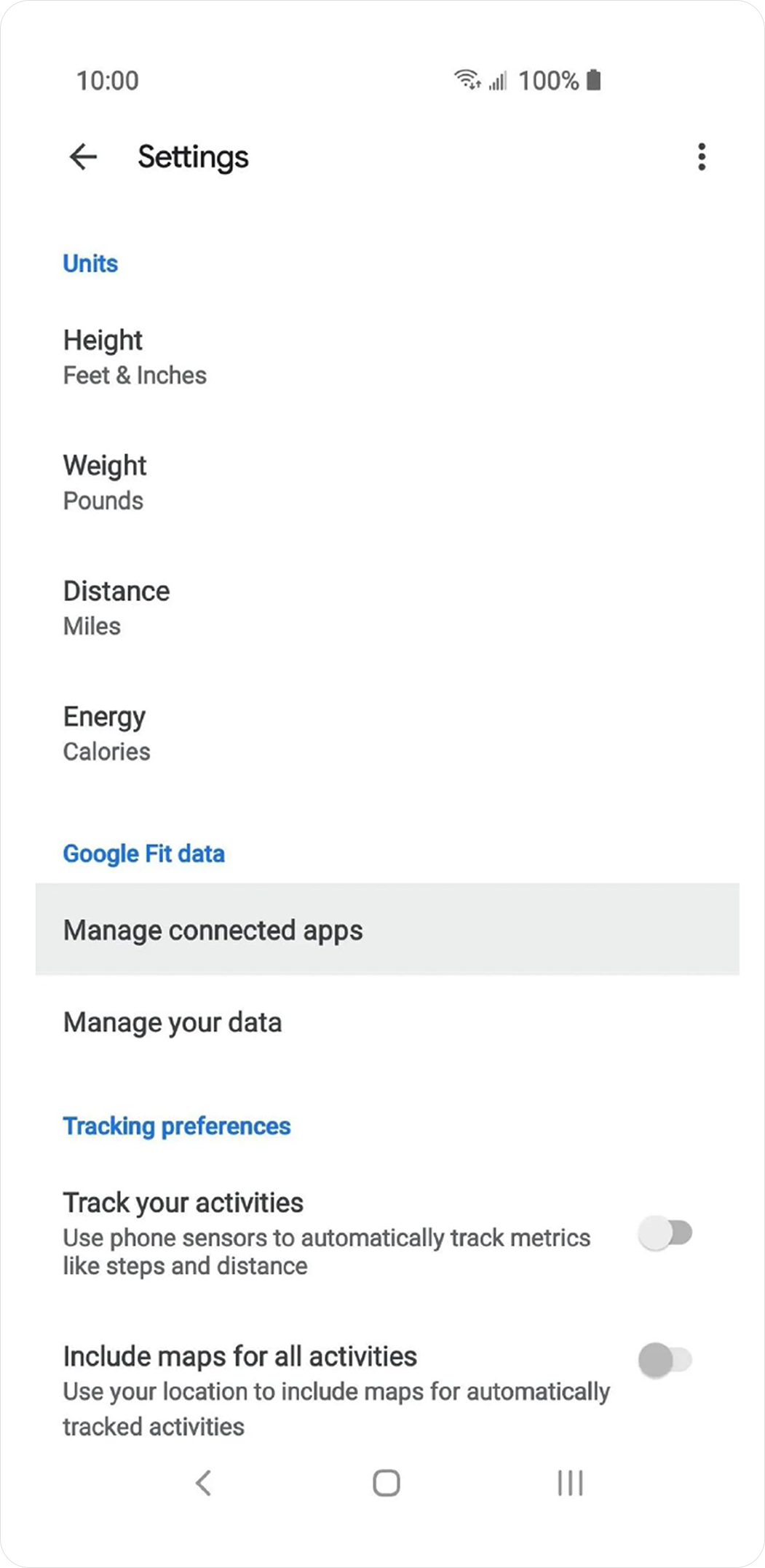
Syncing Google Fit for Android
Google Fit will be discontinued by end of 2025. In case you are still using Google Fit meanwhile, make sure to sync it with Health Connect. Follow these steps:
Open the Google Fit app
Tap Profile > Settings
Under 'Health Connect' settings, tap ”Manage data and access Connected apps”
Manage connected apps in Health Connect
Enable Google Fit as a Health Connect data source
Syncing Apple Health (HealthKit) with VIWELL
Sync data between Apple Health and VIWELL
The Apple Health app provides a central and secure place for your health and fitness information, so it’s easily accessible and under your control.
Health automatically counts your steps, walking, and running distances. And, if you have an Apple Watch, it automatically tracks your Activity data. You can also enter information into a Health category or get data from any of your favorite apps or devices that are compatible with Health.
Set up your Health Profile (skip if already set)
On your iPhone open the Health app.
Tap the Summary tab, then tap your profile picture in the upper-right corner.
Tap Health Details, then tap Edit.
Add your information, like your date of birth and blood type.
Tap Done.
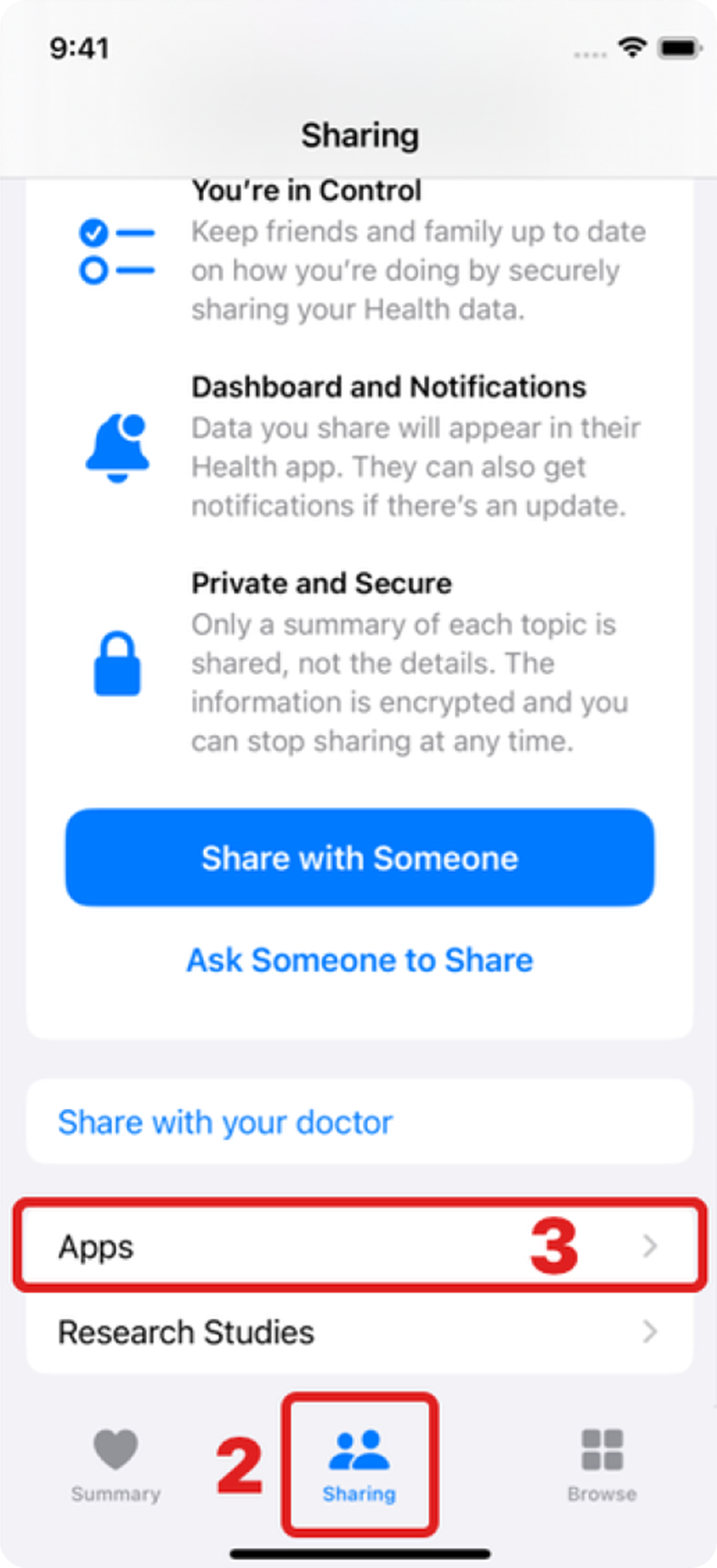
Choose which apps share information with Health
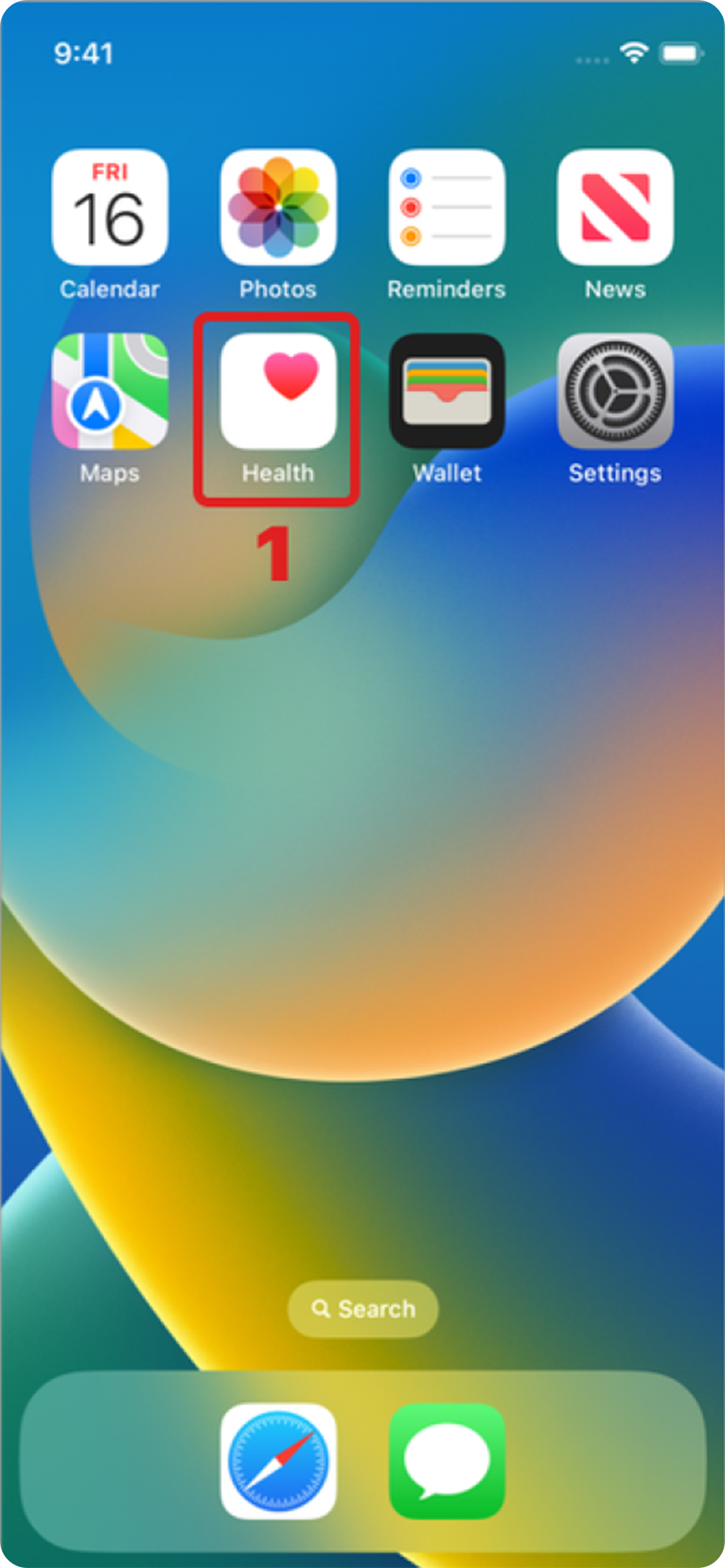
On your iPhone, open the Health app.
Tap the Summary tab, then tap your profile picture in the upper-right corner.
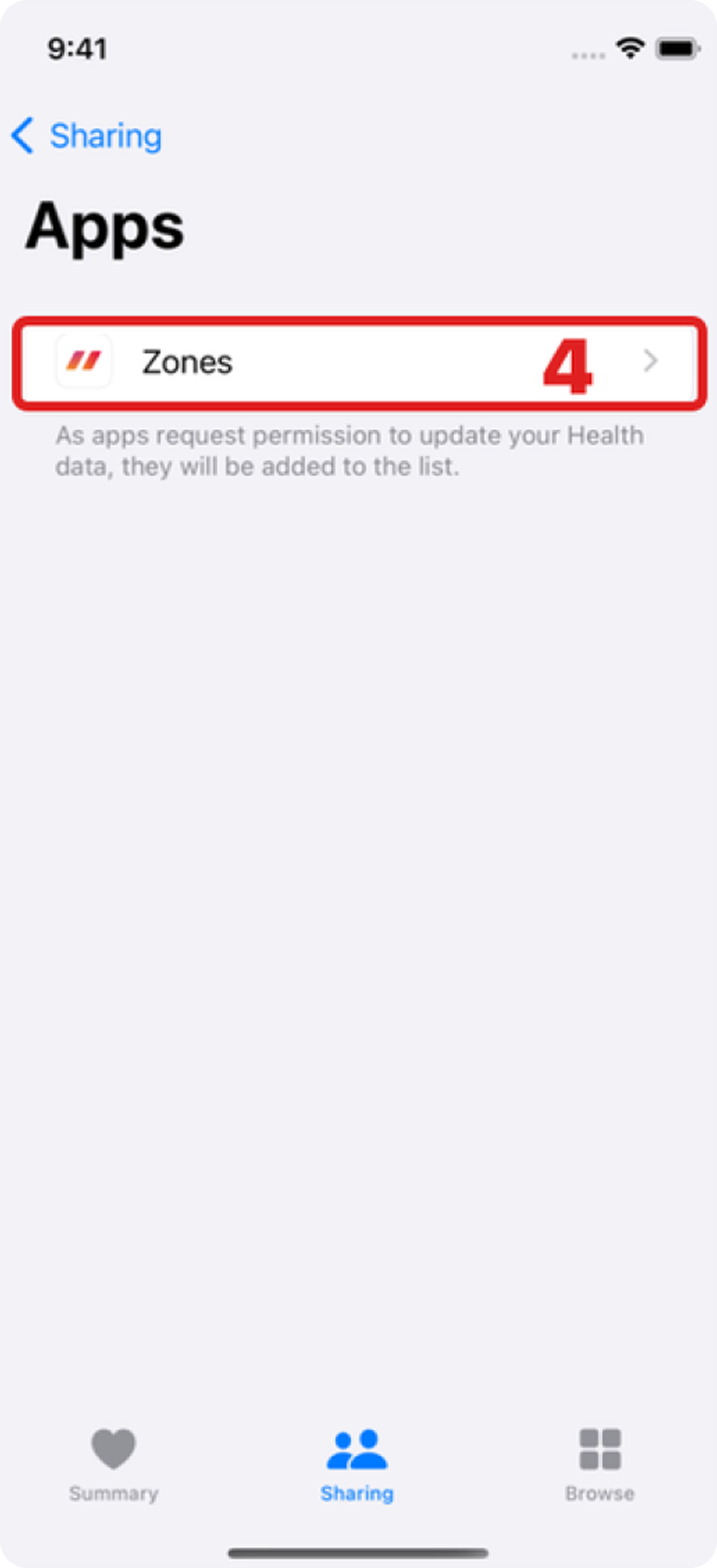
Under Privacy, tap Apps. You can see apps that you already own that are compatible with
Health. If you don't see an app, it might not be compatible.
Tap an app and turn on the health categories that you want that app to track.
If you're using multiple apps to track different things, the Health app can keep it all in one place. Manage the data that's added to Health app.
Apple Watch apps can also read and write Health data. You can manage them directly on your Apple Watch: Go to
Settings > Health > Apps.
Sync FitBit with VIWELL
Sync data between Apple Health and VIWELL
iOS:
Unfortunately, Fitbit does not provide an official method for syncing health data with Apple Health. You can use 3rd party apps that Link FitBit data to Apple Health data.
Android:
How do I share Fitbit data with Health Connect?
From the Today tab in the Fitbit app, tap the icon in the top left.
Under Settings, tap Health Connect.
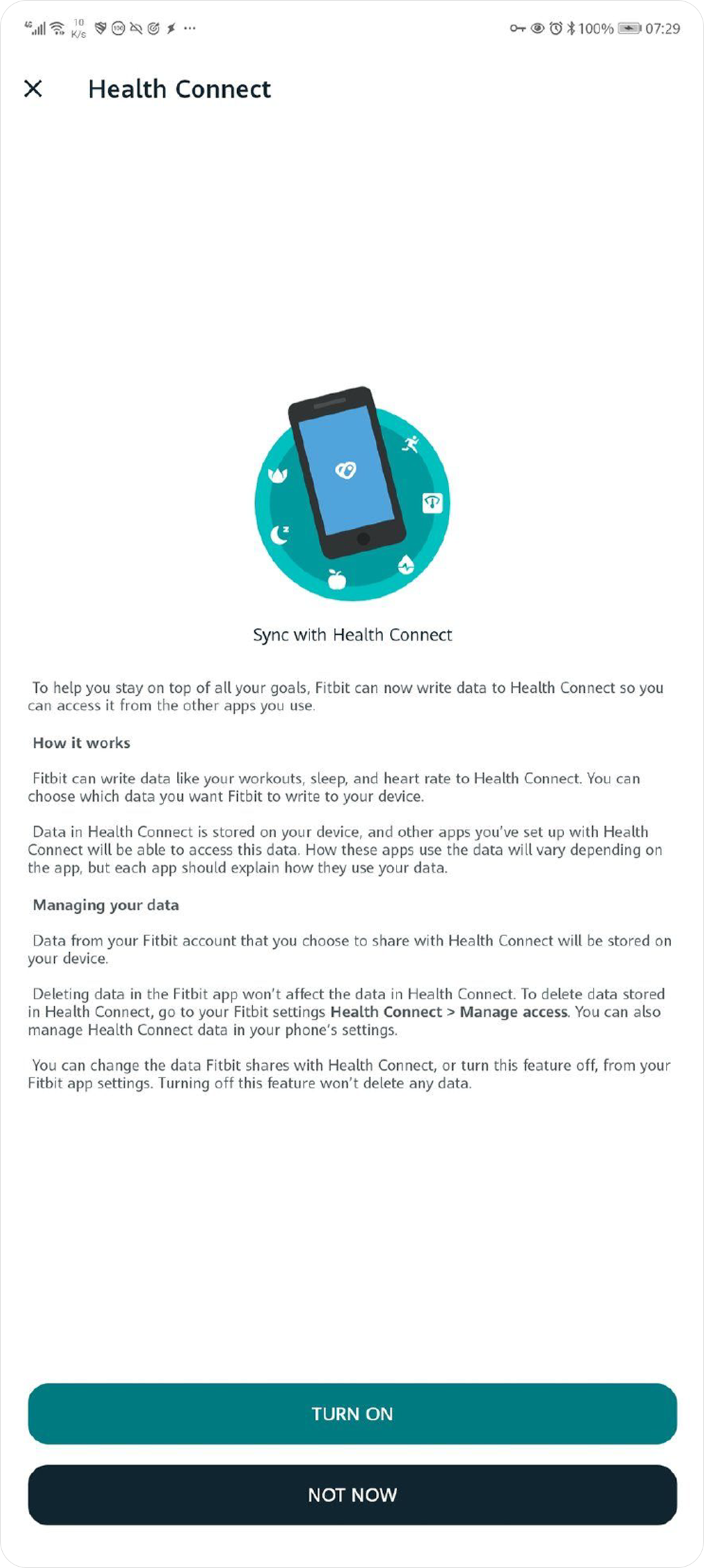
Tap to turn on Sync with Health Connect.
If you don’t have the Health Connect app installed, tap Get Health Connect, and follow the on-screen instructions.
On the Health Connect screen, tap Get started.
Choose which stats you want to sync to Health Connect or tap Allow All.
Tap Done.Wait a few minutes for your Fitbit data to sync. Up to 30 days of Fitbit data will be copied to
Health Connect. After your Fitbit account is connected, Fitbit data syncs to Health Connect throughout the day. Recent data might take up to 15 minutes to appear.
Sync Samsung Health With Health Connect
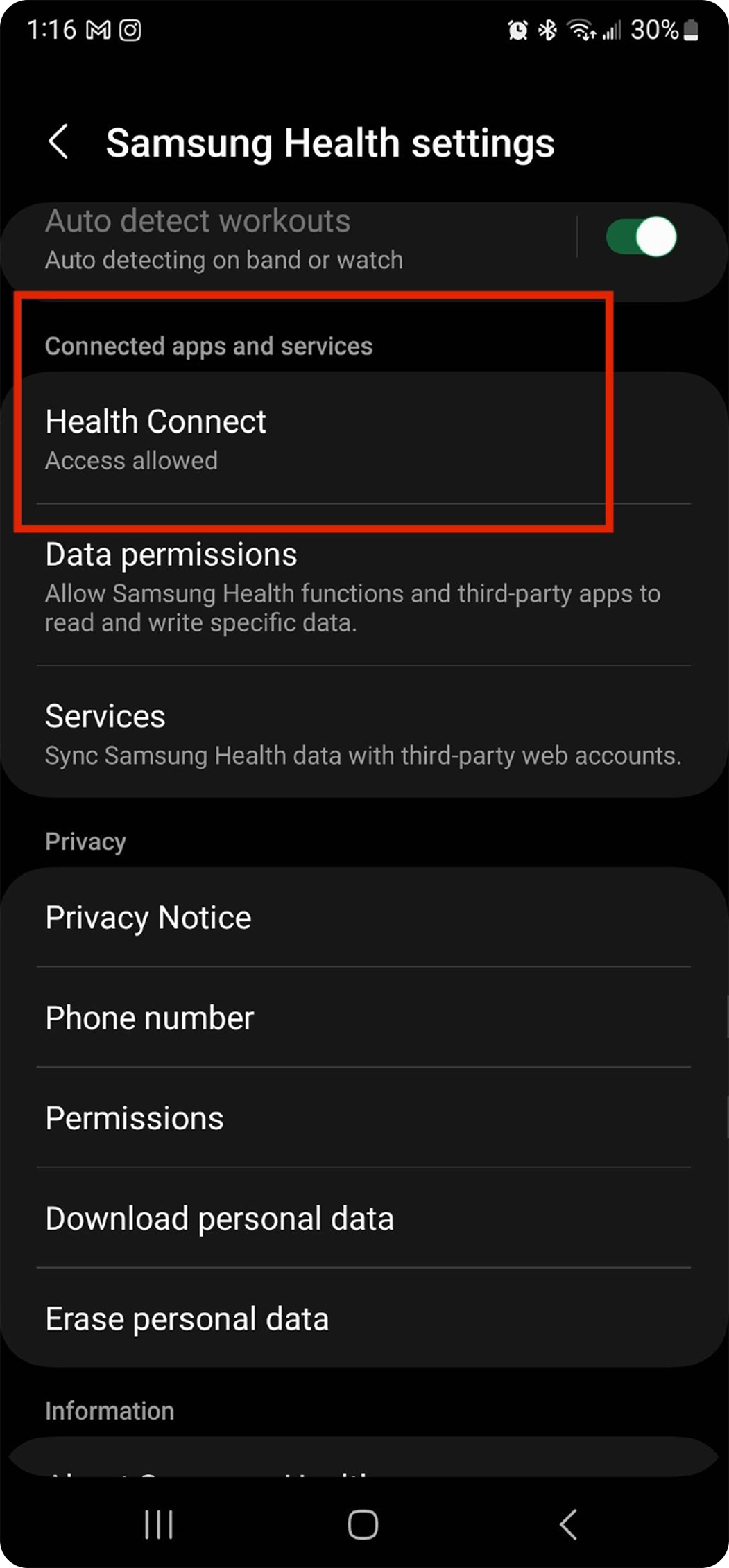
Connecting to Health Connect
To start data synchronization between Samsung Health and Health Connect, you must enable it in the Samsung Health application on your Android device.
Follow these steps:
From the Settings menu, select Health Connect. If Health Connect is not installed, you are prompted to install it.
The first time you access the Health Connect menu item in Samsung Health with the Health Connect application installed, you are asked for permission to share your Samsung Health data with Health Connect. Select the data you consent to sharing, and select Allow.
Samsung Health and Health Connect are now linked and data is shared between them.
I cannot see Samsung Health data in Health Connect. What should I do?
To make sure that data synchronization between Samsung Health and Health Connect is working correctly:
In Google Play, check that the latest Samsung Health and Health Connect application versions are installed. If you want to access Galaxy Watch data, check the Samsung Health application version on the watch too.
Enable data permissions in the Samsung Health application. In Samsung Health, go to ”Settings > Health Connect > App permissions > Samsung Health”.
Note : You must enable the permissions through Samsung Health > Settings > Health Connect, not through the phone Settings > Apps > Health Connect. In Samsung Health, go to “Settings > Sync with Samsung account” and tap “Sync now”.
Synchronizing Samsung Health data in: Samsung Health > Settings > Sync with Samsung Cloud > Switch to 'On'.
Sync Whoop with VIWELL
iOS:
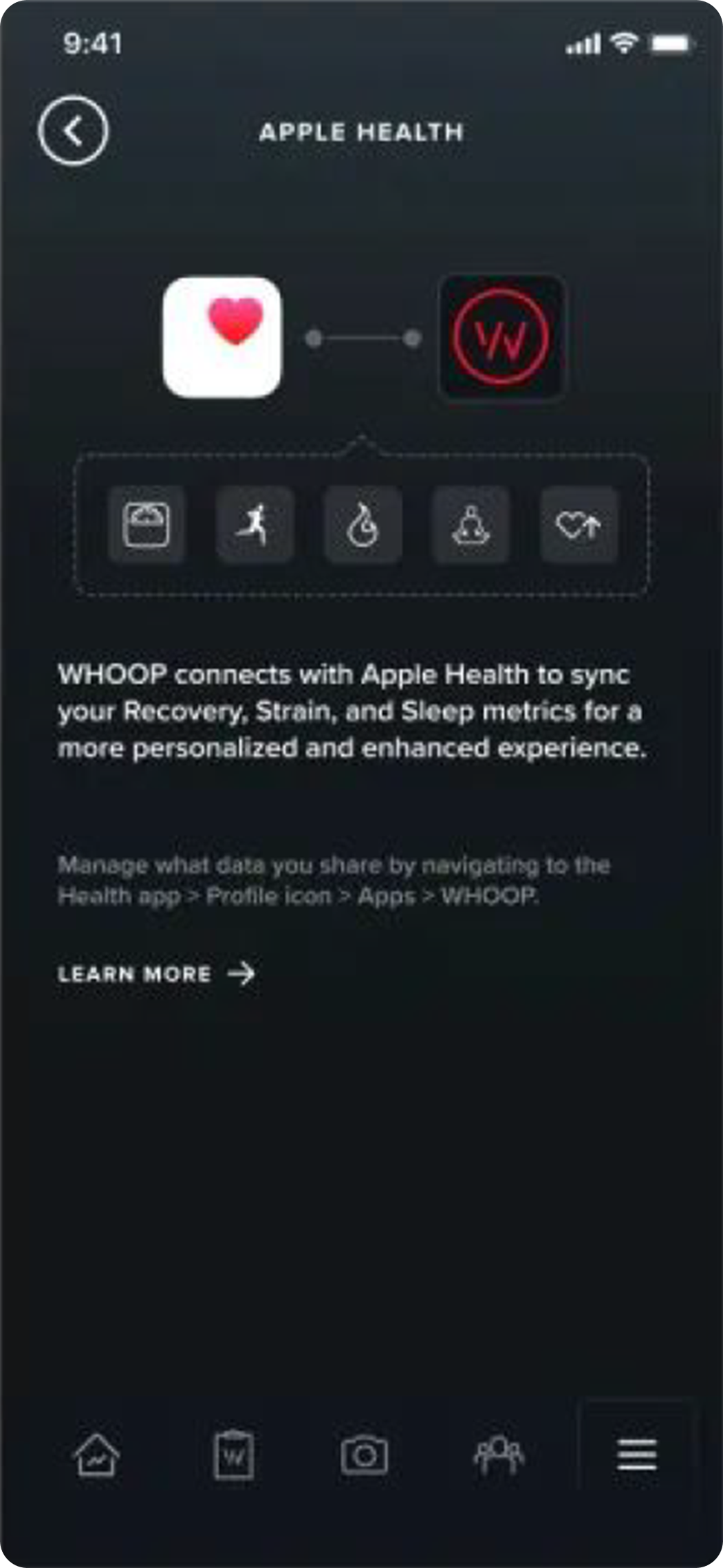
Connecting to Apple Health
To enable Health app access, follow these steps:
Update your WHOOP App to the latest version
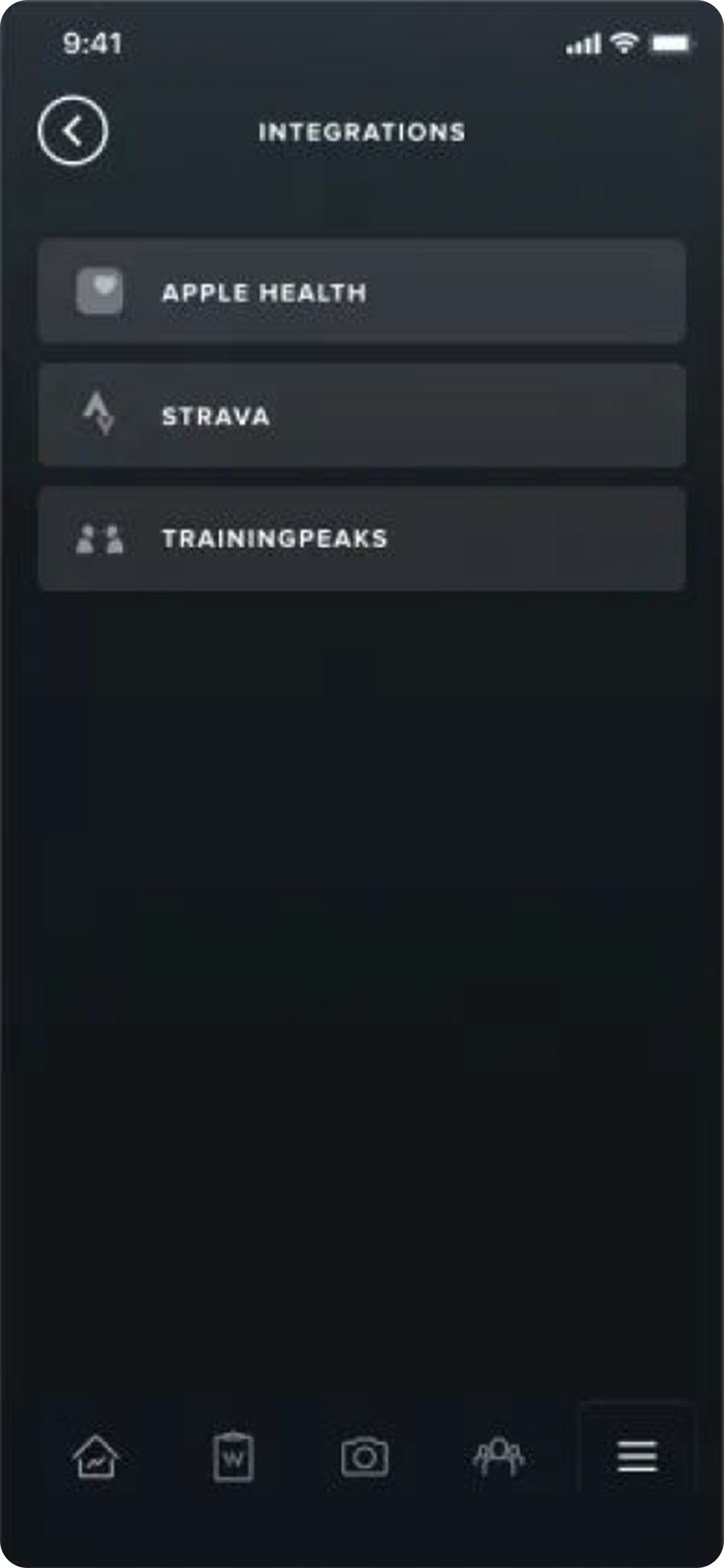
Open the WHOOP app and select the menu icon in the bottom-right corner
Scroll down and select Integrations
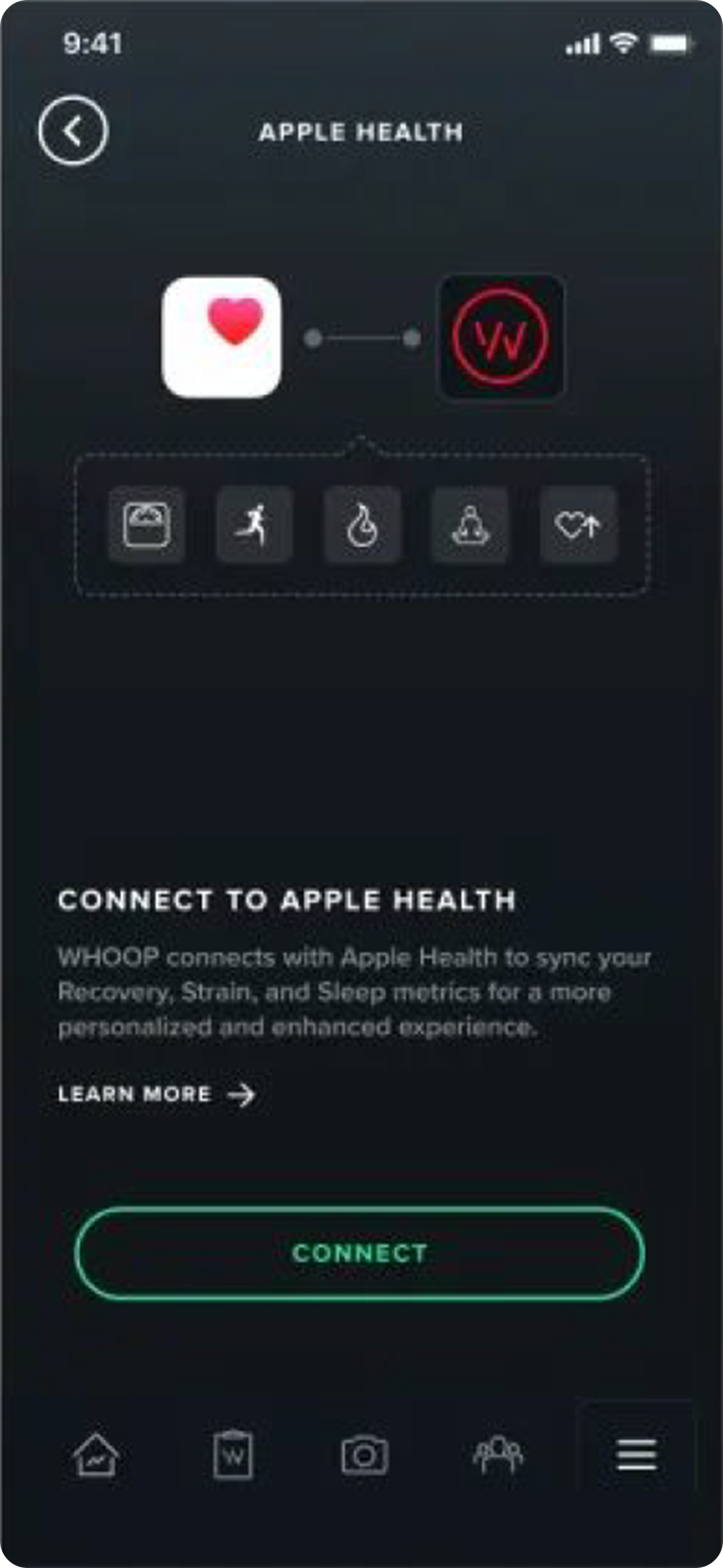
Select Apple Health
Select Connect
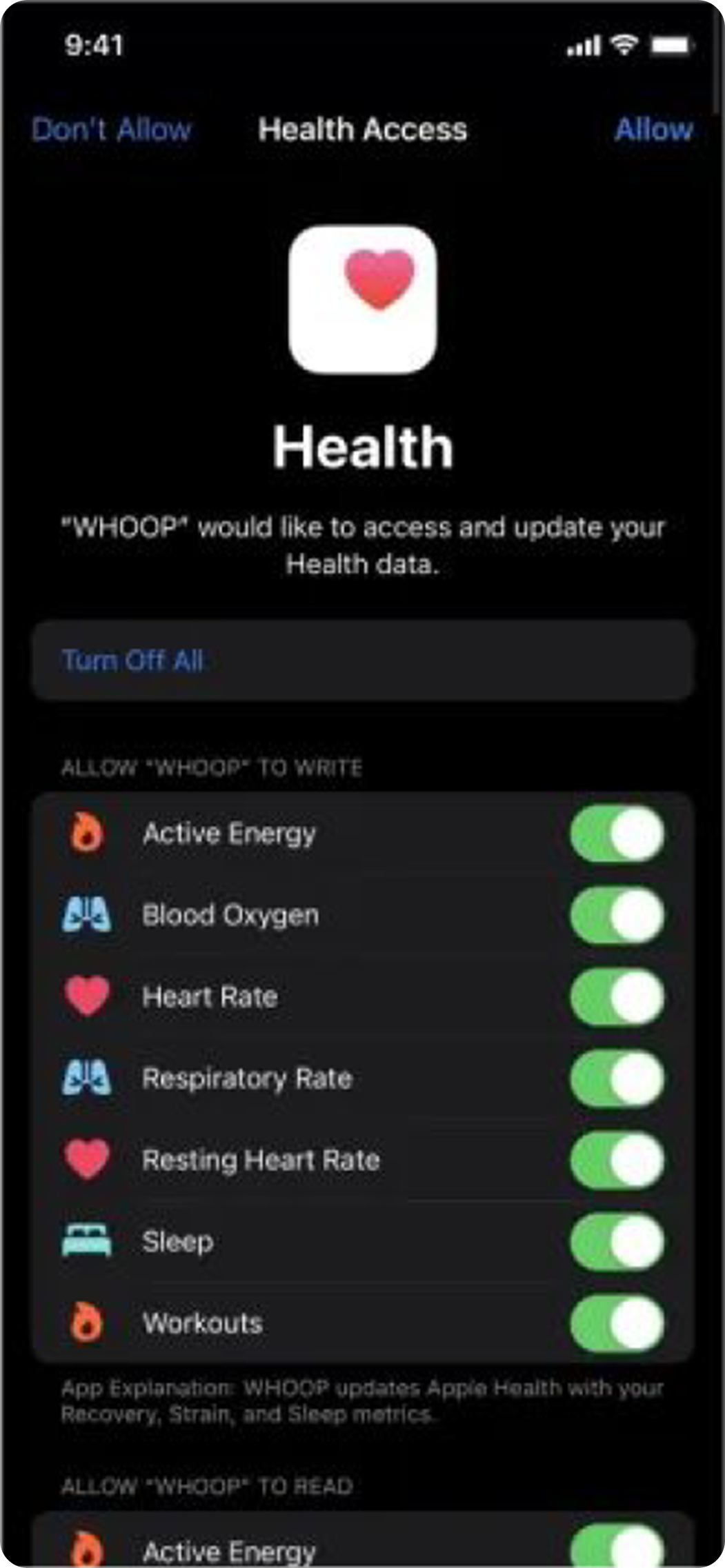
Select Turn on all or select which categories you'd like to share between WHOOP and Apple Health
Select Allow
Android:
Connecting to Health Connect
To enable Health Connect app access, follow these steps:
Update your WHOOP app to the latest version
Open the WHOOP app and click the More icon in the bottom-right corner
Scroll down and tap Integrations
Tap Health Connect

Sync Garmin with VIWELL
iOS:
Connecting to Apple Health
How Do I Enable or Disable Sharing With Apple Health?
To enable or disable sharing data from Garmin Connect to Apple Health, follow the instructions below.
Open the Apple Health app.
Select Summary (bottom left).
Select your Profile Picture (top right).
Select Apps under Privacy.
Select the Connect app.
Toggle Categories on or o.
Once sharing is enabled, the Health app will only display previously recorded data from up to two weeks prior to the sharing being enabled.
How Is Data Transferred From Garmin Connect to Apple Health?
Once Garmin Connect sharing is enabled in Apple Health, data will begin syncing to the Apple Health app after each successful device sync with the Garmin Connect app. Data will only be sent to Apple Health while the Garmin Connect app is open in the foreground. If the app is closed or sent to the background, the transfer of data to Apple Health will not complete until a successful sync of the device while the Garmin Connect app is open.
Troubleshooting
I Have Enabled Data from Garmin Connect to Be Shared but It Is Not Appearing in the Apple Health App
Apple Health can allow multiple sources to update your health data. When multiple sources are available, only one data source will be chosen based on the priority order listed in the Apple Health app. If you notice that your Garmin Connect data is not appearing in Apple Health but you have enabled sharing, you may need to update the priority of data sources so that Garmin Connect is first priority. For instructions refer to this Apple Support article: Pioritize data sources in Apple Health. Connect from the Play Store.
Android:
Not Yet Available for Android
Sync Xiaomi Mi Fit with VIWELL
iOS:
Connecting to Apple Health
How Do I Enable or Disable Sharing With Apple Health?
To share your data with Apple Health, perform the following steps:
Open the Mi Fitness app
Tap on 'Profile' on the bottom right
Tap on 'App Permissions'
Tap on 'Health'
Select 'Enable all' data categories
Android:
Android app users will need to perform a one-time connection between Xiaomi Mi Fitness and Google Fit and then to Health Connect on their Android device.
Connecting to Google Fit
Follow these steps:
Open the Mi Fitness app
Tap on 'Profile' on the bottom right
Tap on 'Third-party data'
Tap on 'Google Fit'
Select your 'Google Fit' account
Tap on 'Allow'
How do I share Google Fit data with Health Connect?
Follow these steps:
Open the Google Fit app
Tap Profile > Settings
Under 'Health Connect' settings, tap ”Manage data and access Connected apps”
Manage connected apps in Health Connect
Enable Google Fit as a Health Connect data source
