
How to create an event & see details

Create and manage company events to engage your employees. Set up event details, upload images, and track participant engagement easily.
Section 1
Create an event
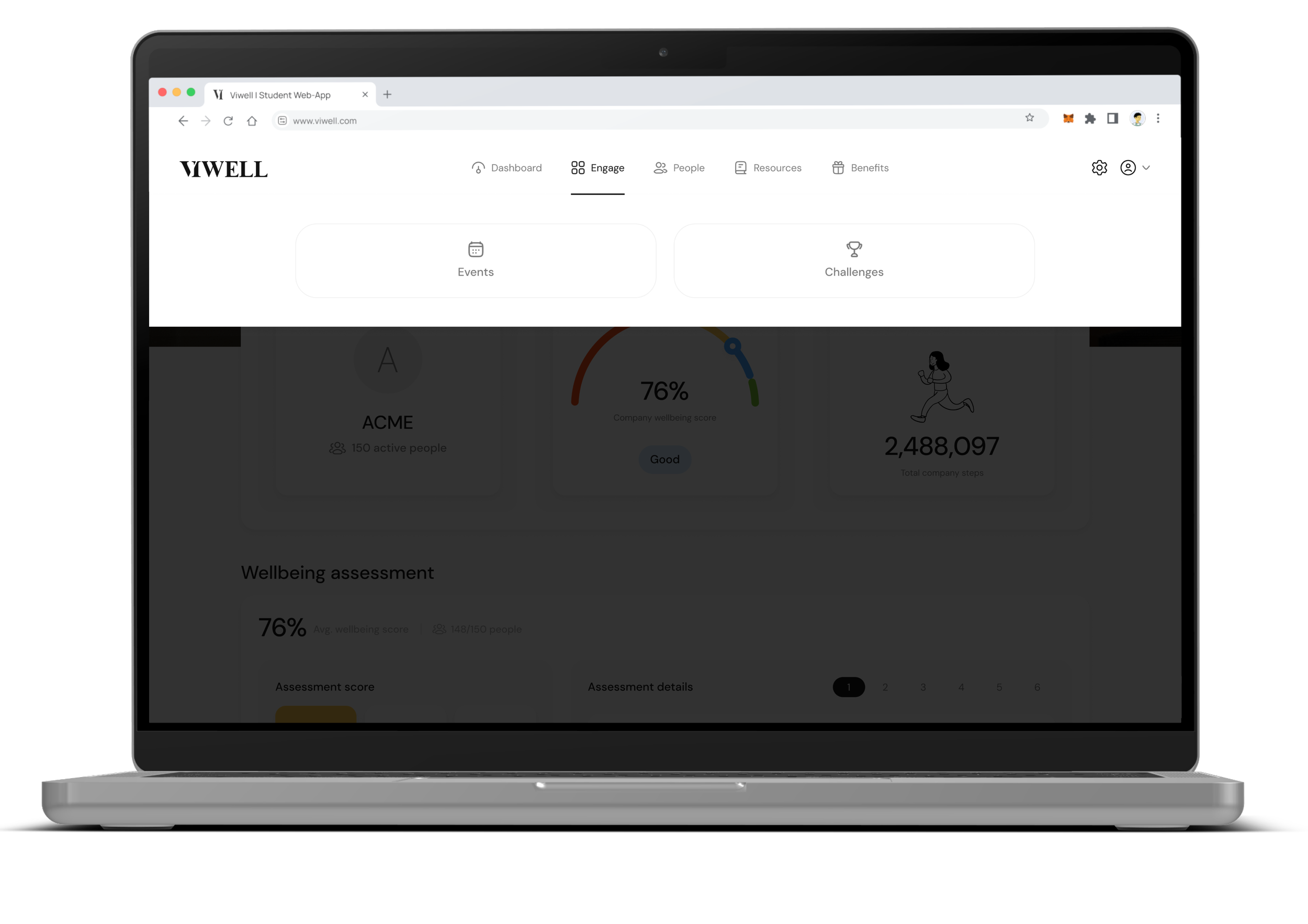
Step 1
Go to Events
Navigate to Engagement → Events in the dashboard.
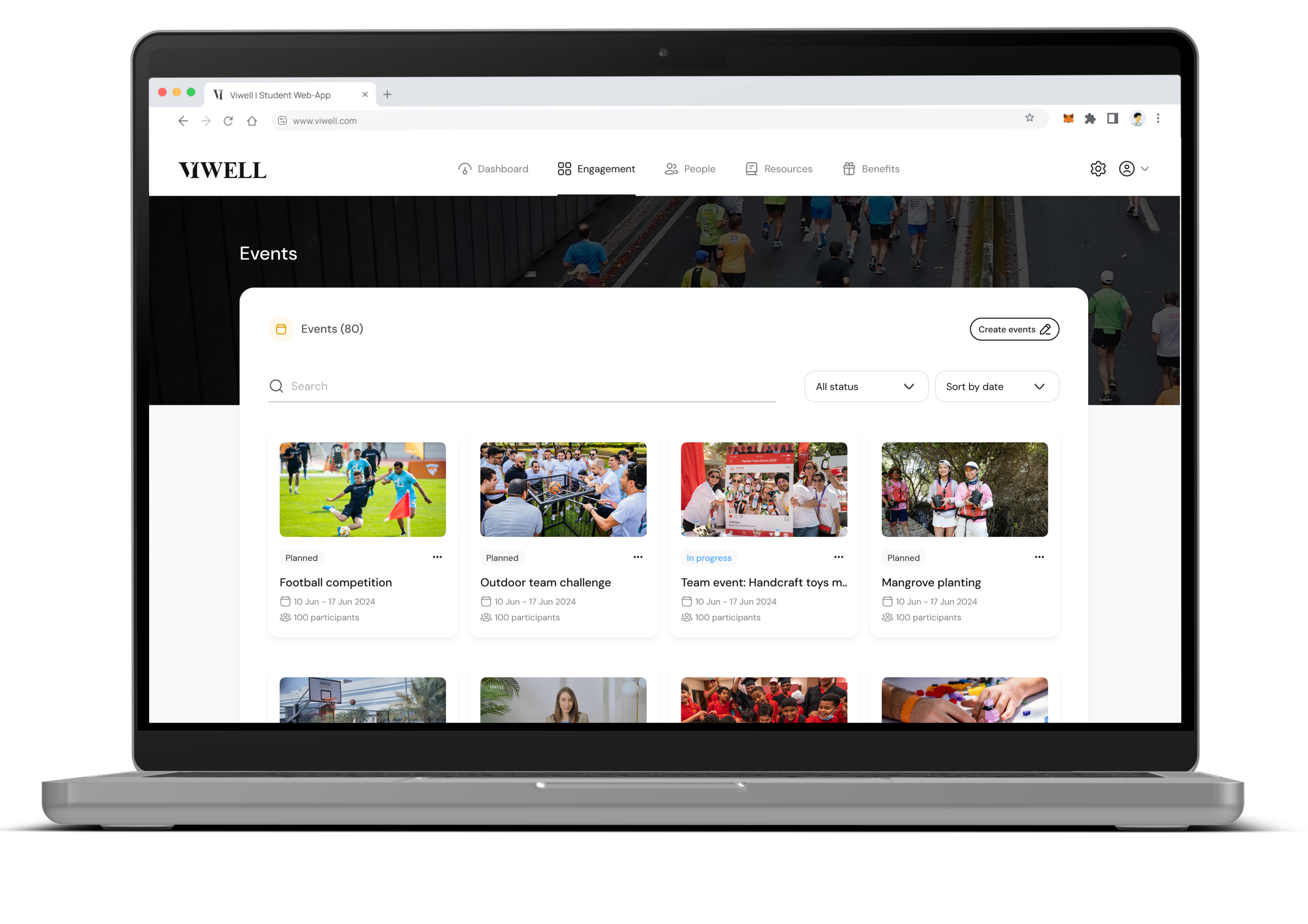
Step 2
Click on “Create Event”
Click the Create Event button to start a new event.
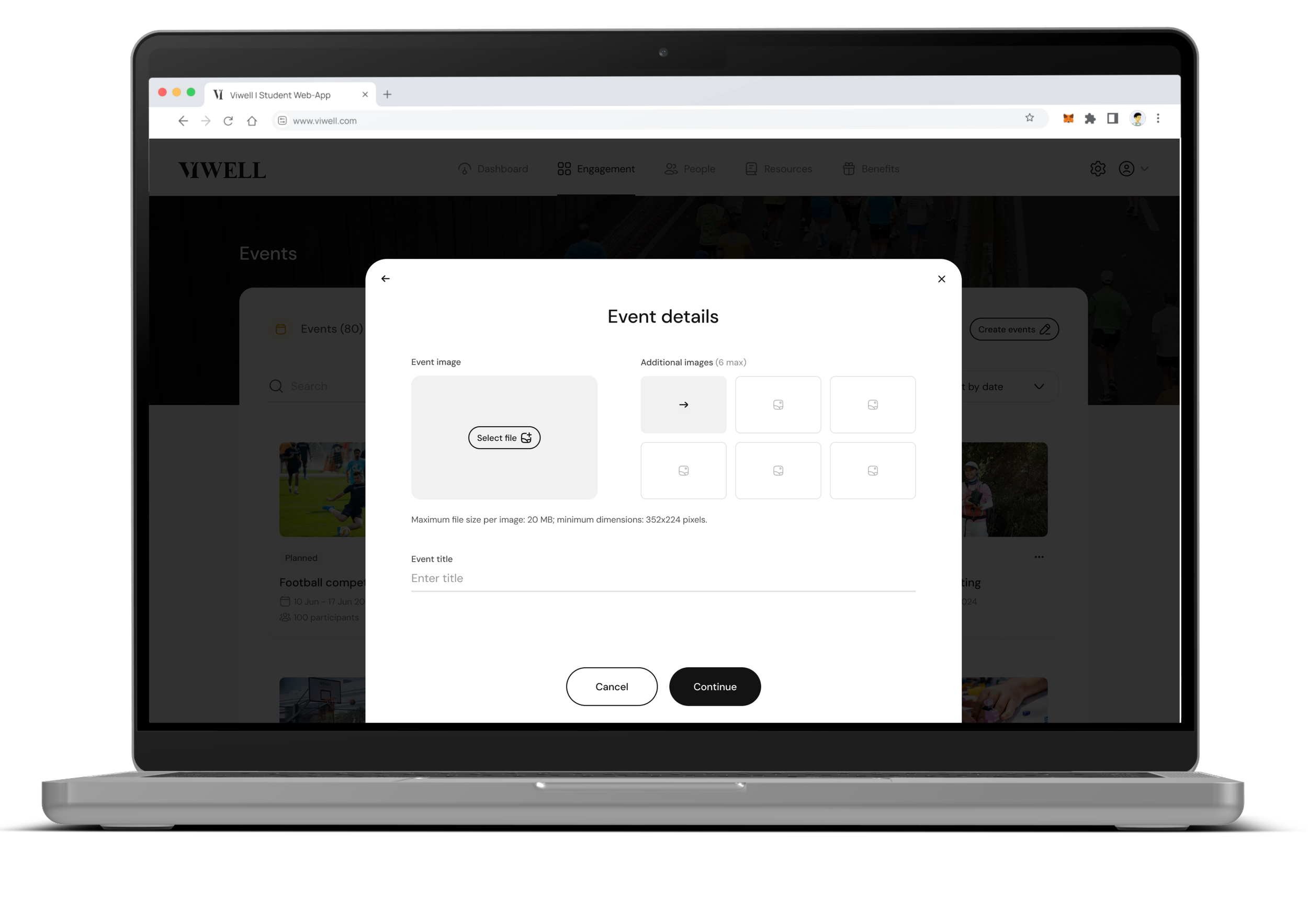
Step 3
Upload Event Image
Upload an image for the event, which employees will see in their VIWELL app. The recommended maximum file size is 20MB, and the minimum dimensions are 352x224 pixels. Make sure the important content appears in the center of the image.
Step 4
Add Additional Images (optional)
If you want to showcase more images for the event, you can upload additional images.
Step 5
Set the Event Title
Enter a title for the event, with a maximum of 30 characters.
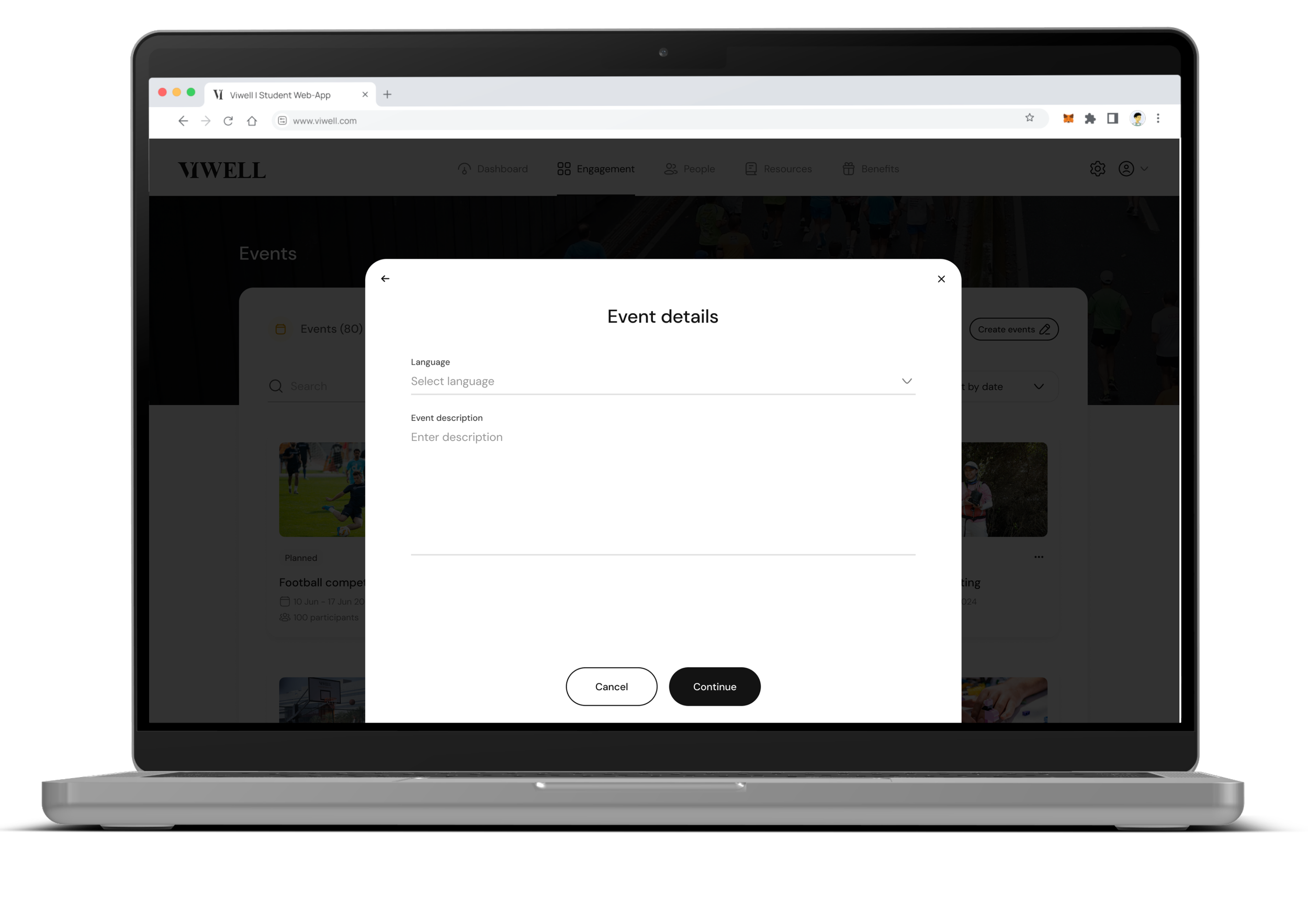
Step 6
Choose the Event Language
Select the primary language for the event. Additional languages can be added after the event is created.
Step 7
Add Event Description
Write a description of the event, with a maximum of 1000 characters.
Step 8
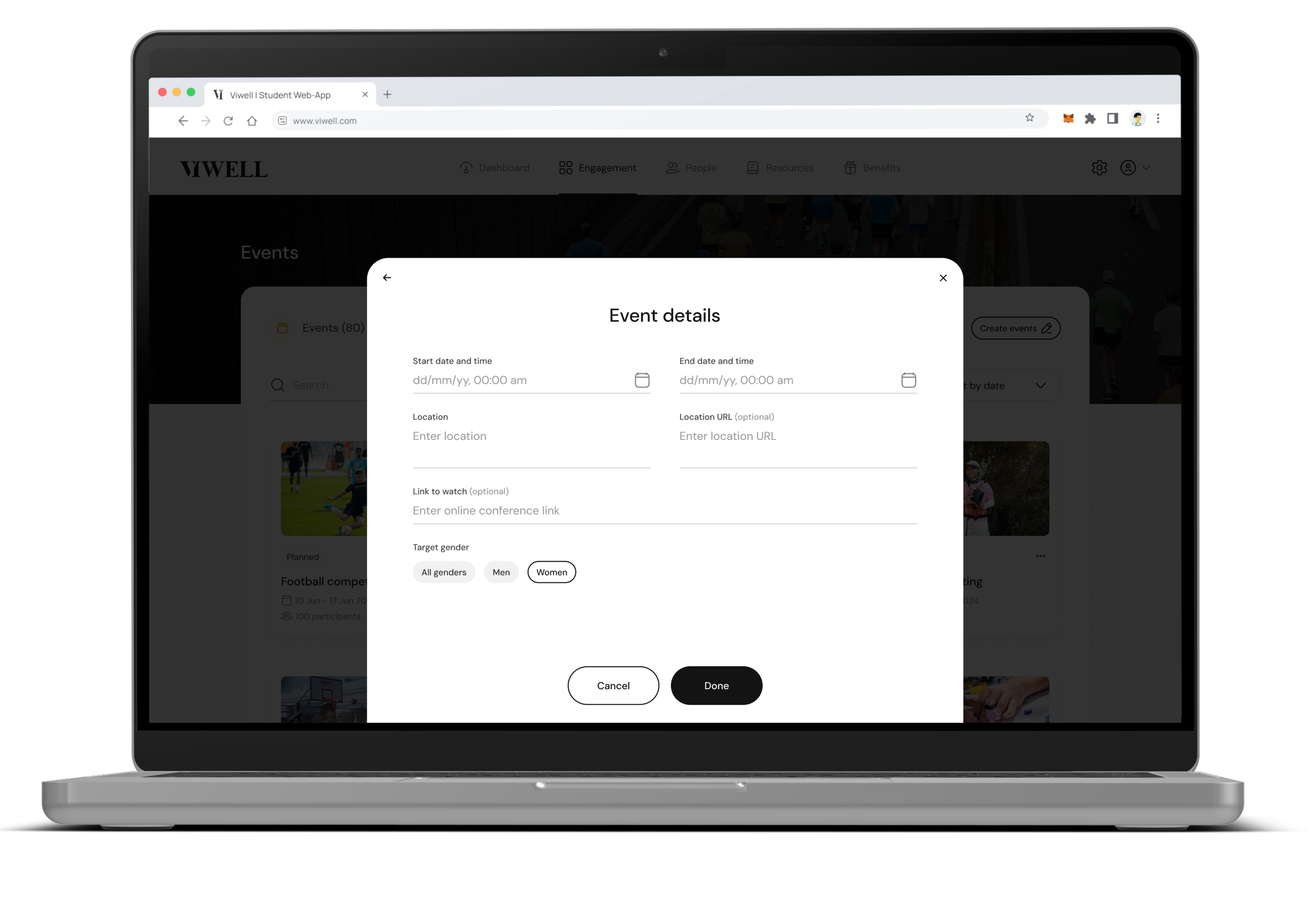
Set Event Start Date & Time
Set the event’s start date and time. The date cannot be in the past. Employees can join the event before it starts, and they will receive a reminder 24 hours before the event begins.
Step 9
Add Event Location
Enter the location name of the event. (Optional: add a URL for the event location.)
Step 10
Link to Watch Event (optional)
If the event is online, you can add a link where employees can watch the event.
Step 11
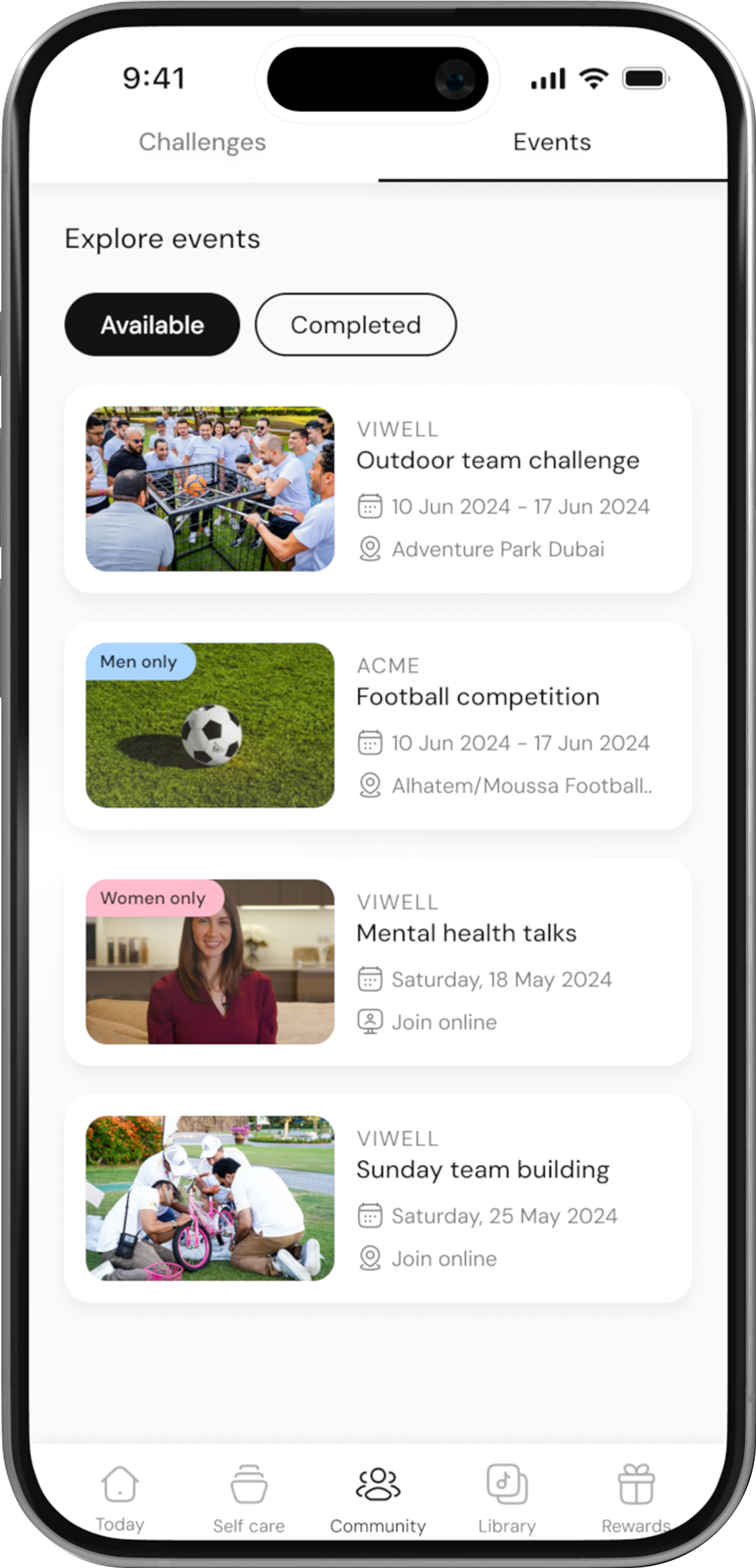
Save the Event
Once all details are filled, click Save. The event will appear in the Employee community section in the app, and employees can join.
Section 2
Edit the Event
Step 1
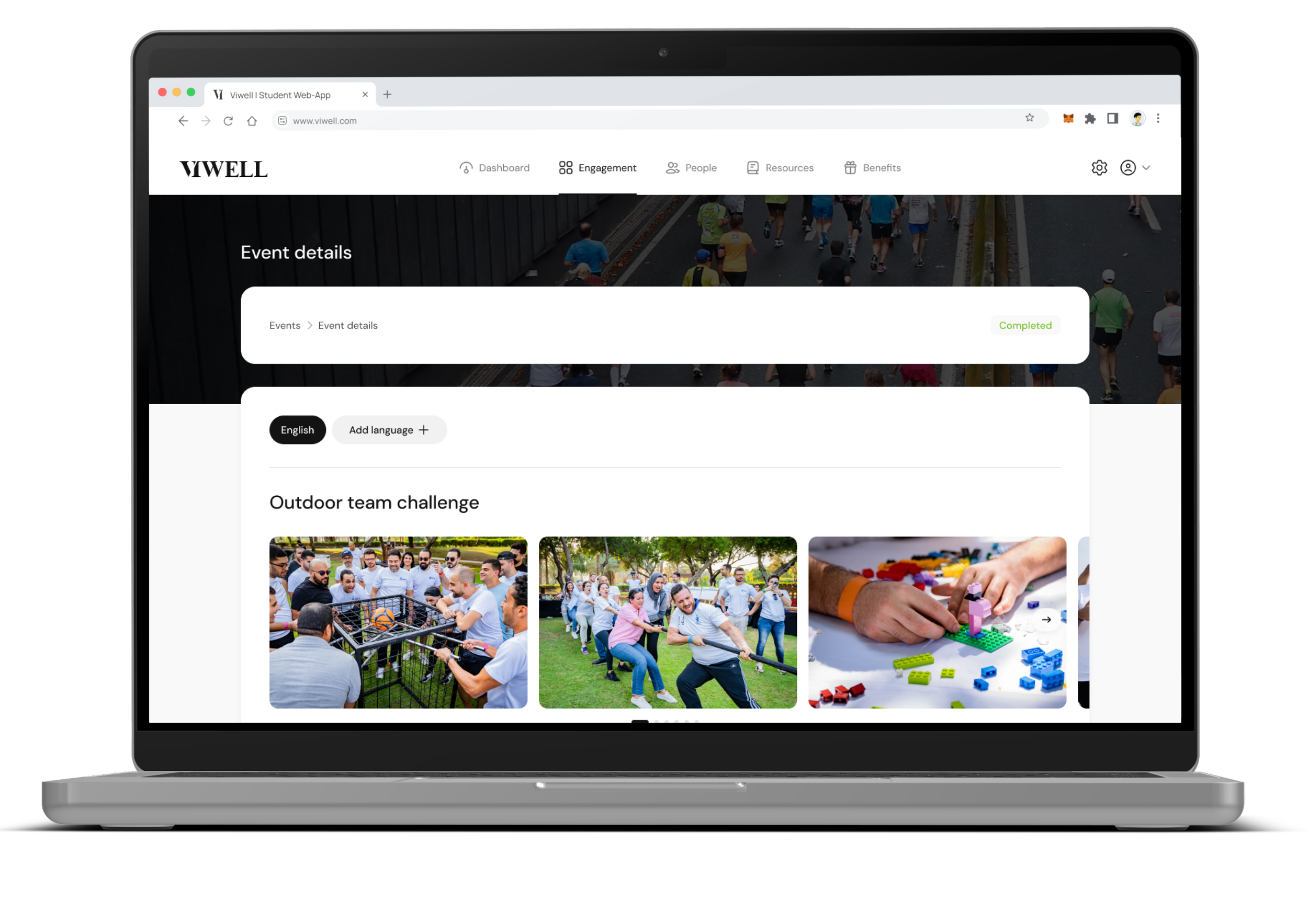
Access Event Details
After creating the event, you can view its details by clicking on the event.
Step 2
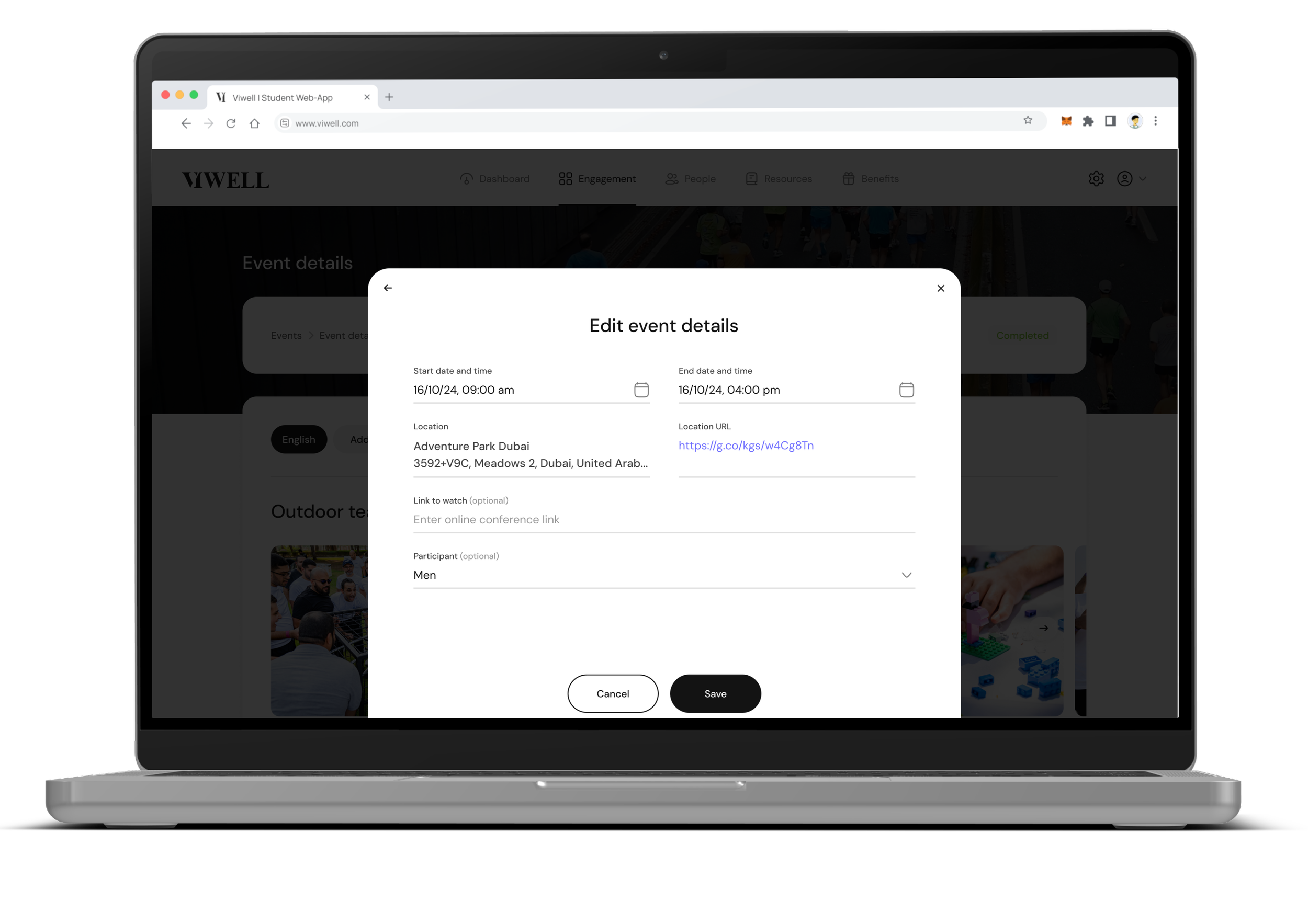
Edit Event Details
You can edit any event details as long as the event hasn’t started yet. Once the event has started, only limited fields (e.g., title, image, description, end date) can be edited.
Section 3
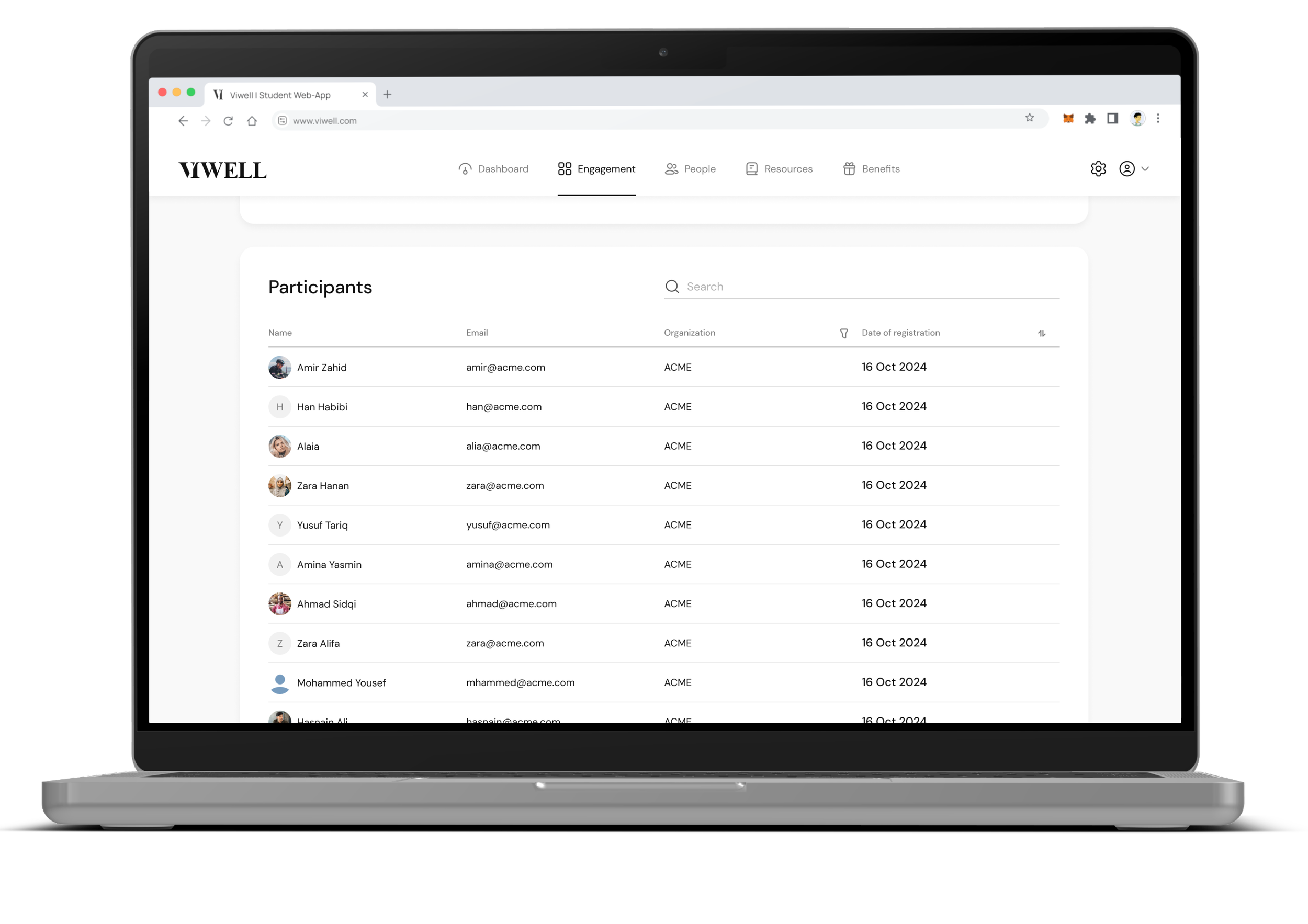
View and Search Participants
Step 1
View Participants
Once employees have joined the event, you can view and search the participant list from the event details page. You’ll also see the date of registration for each participant.
