
How to Invite and Manage Organization Admins

As an admin, you can invite new admins to help manage your organization’s dashboard, monitor current admin access, and send reminders for account setup.
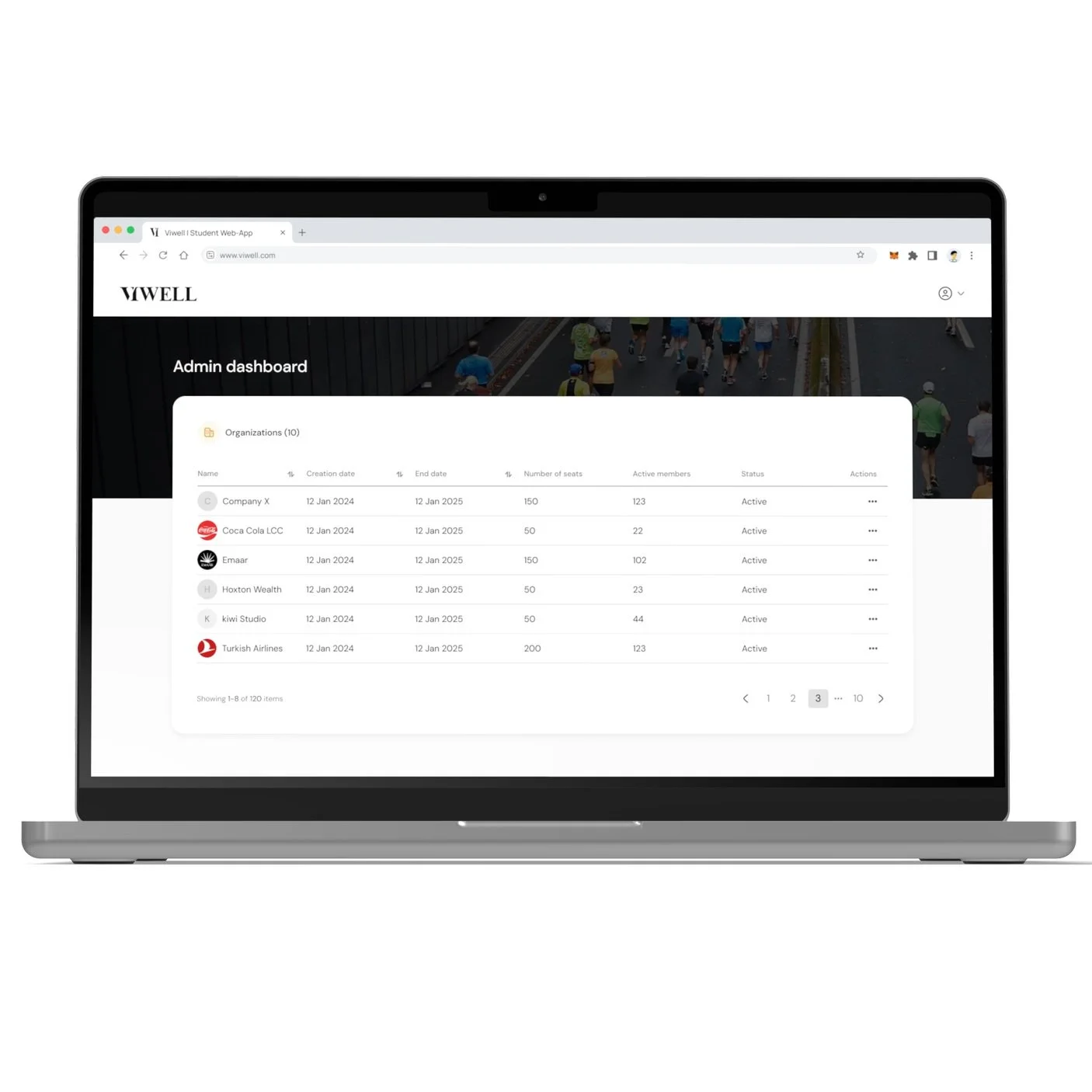
Step 1
Go to Org settings
Click on the Org settings icon at the top right and navigate to the Details tab.
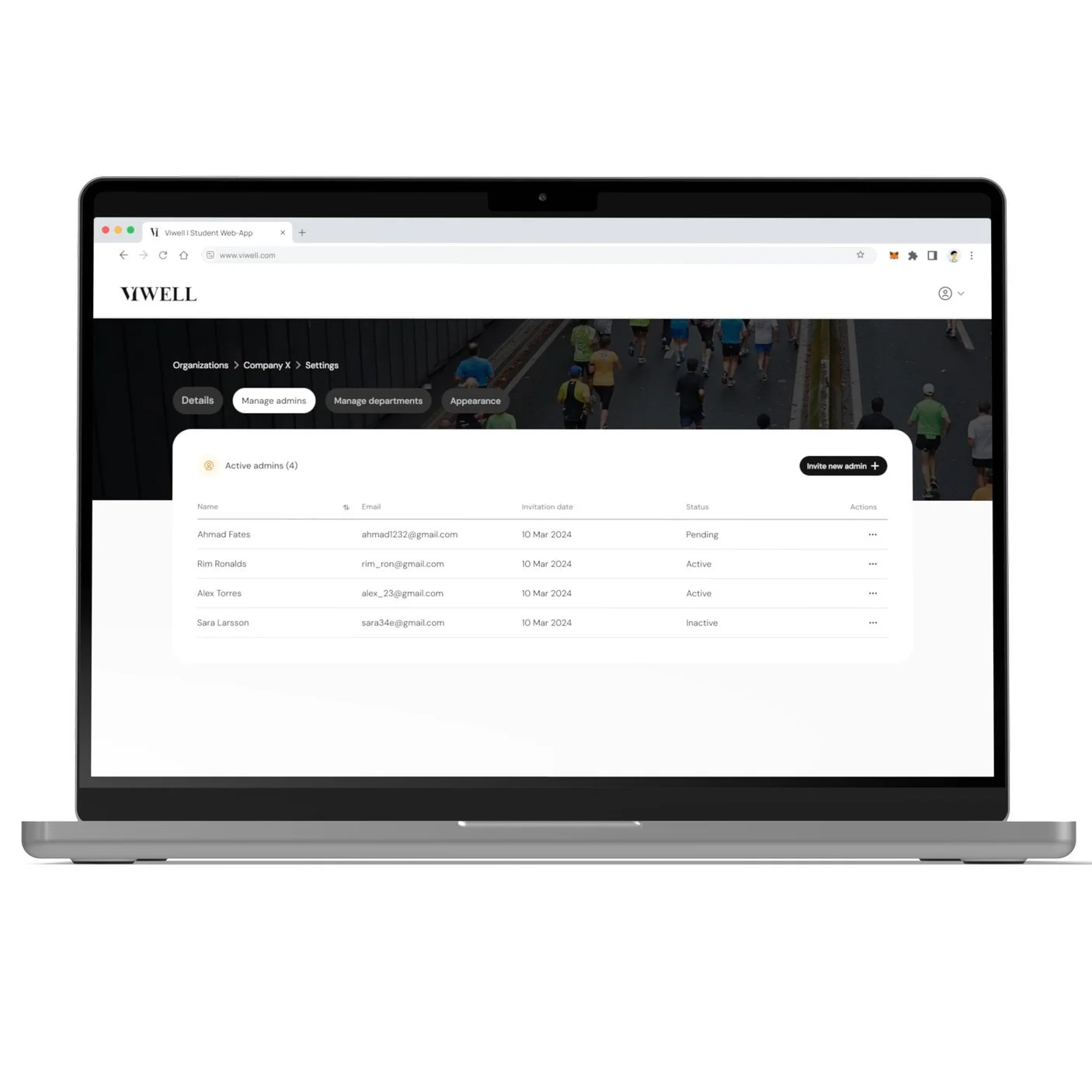
Step 2
Click on Manage Admins tab
Select the Manage Admins tab to view and manage your organization’s admins.
Step 3
View list of admins
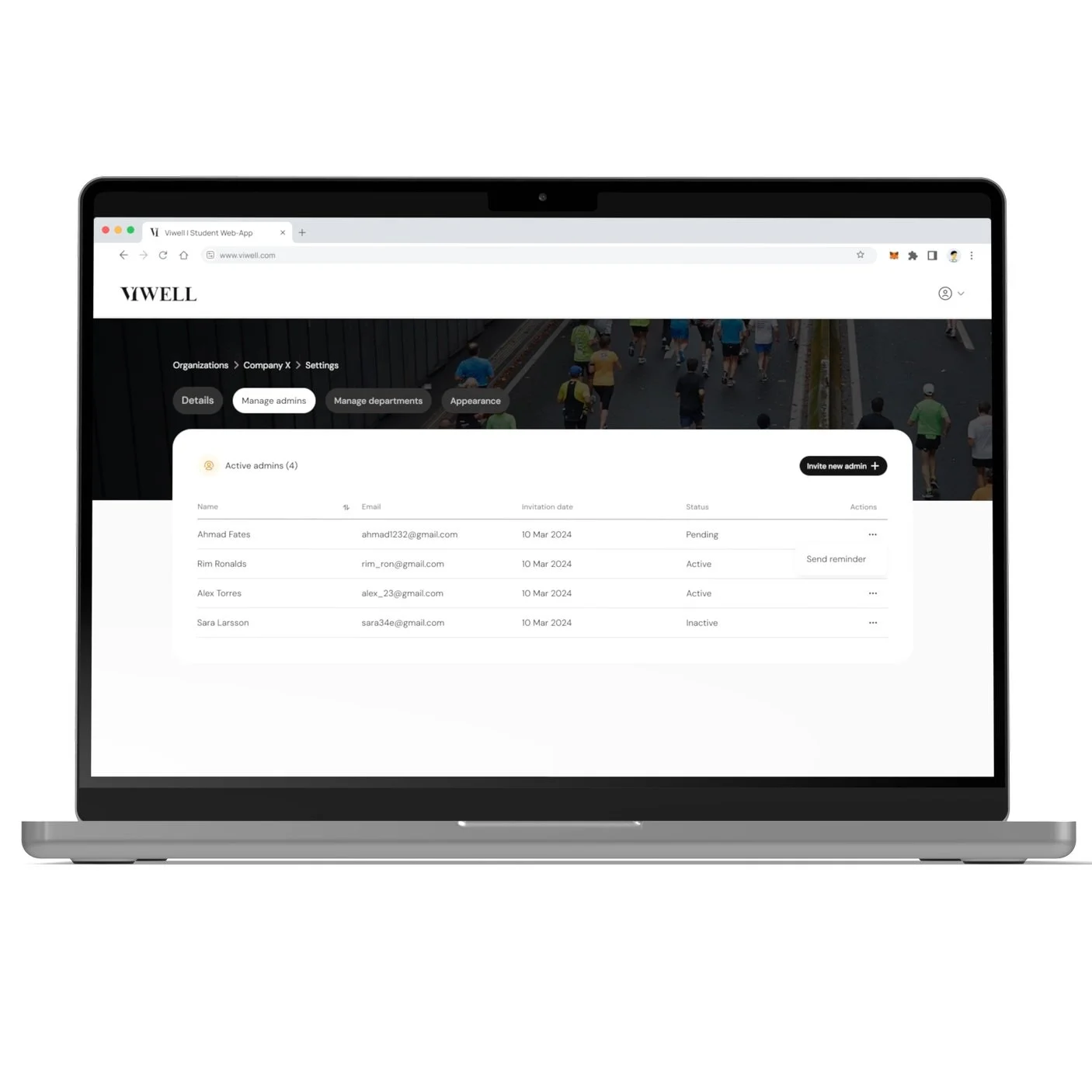
Here you will see a list of admins who currently have access to your dashboard.
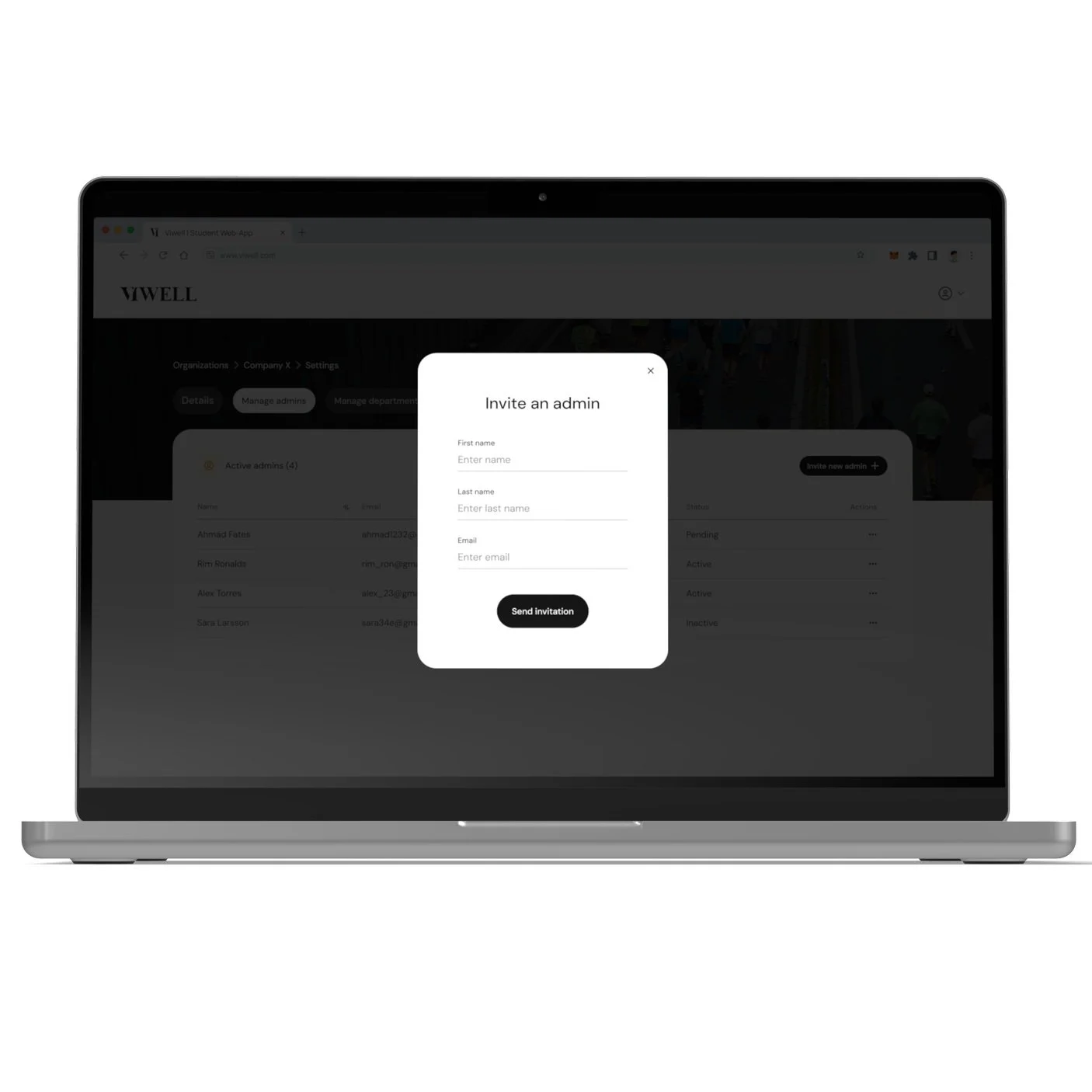
Step 4
Invite a new admin
Click on Invite new admin and enter the details of the admin you wish to invite to the organization.
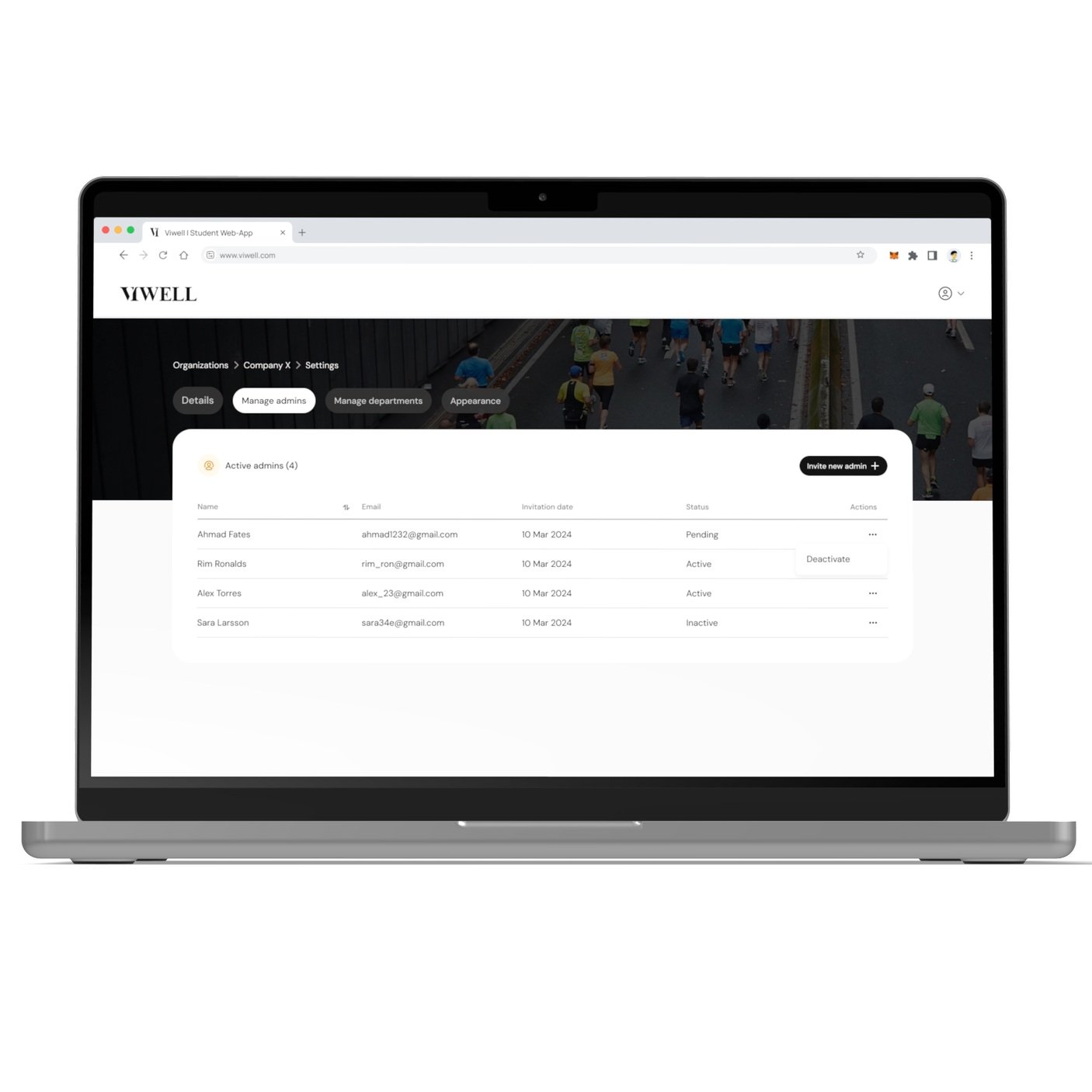
Step 5
Deactivate an admin’s access
To deactivate an admin’s access, click on the three dots in the Actions column and select Deactivate.
Step 6
Send an email reminder
If an admin’s status is marked as “Pending,” click on the Actions menu next to their name and select Send Reminder to prompt them to set up their account.
